Maven 中央仓库发布教程:基于 Gpg4win 与 Sonatype Central Portal
2026-09-14T03:22:26+08:00 | 5分钟阅读

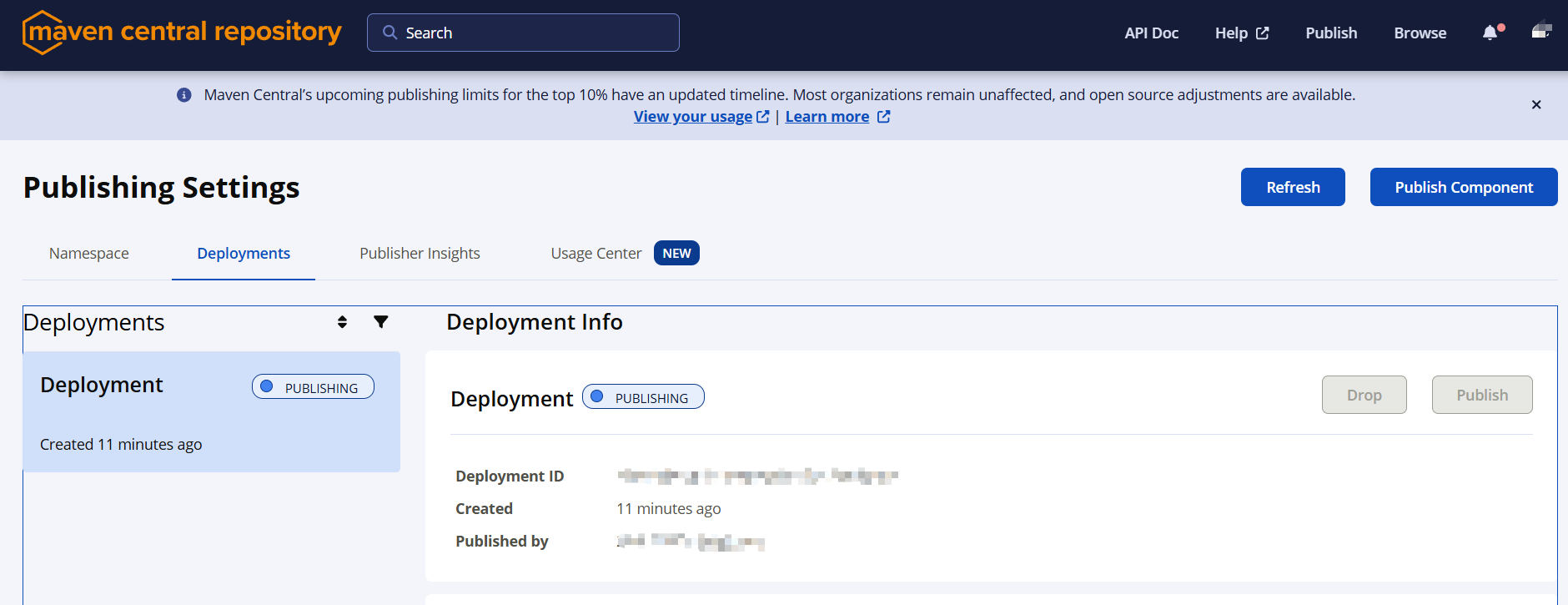
Maven 中央仓库发布教程:基于 Gpg4win 与 Sonatype Central Portal
准备工作
| 工具 | 说明 |
|---|---|
| IDEA | 开发工具 |
| JAVA JDK | java开发环境 |
| Git | 拉取代码工具 |
| GPG | 签名验证工具 |
| Maven | maven仓库 |
| 一个gihub账号 |
获取GPG签名
GPG下载
到官网(GnuPG - 下载),下载GPG工具。
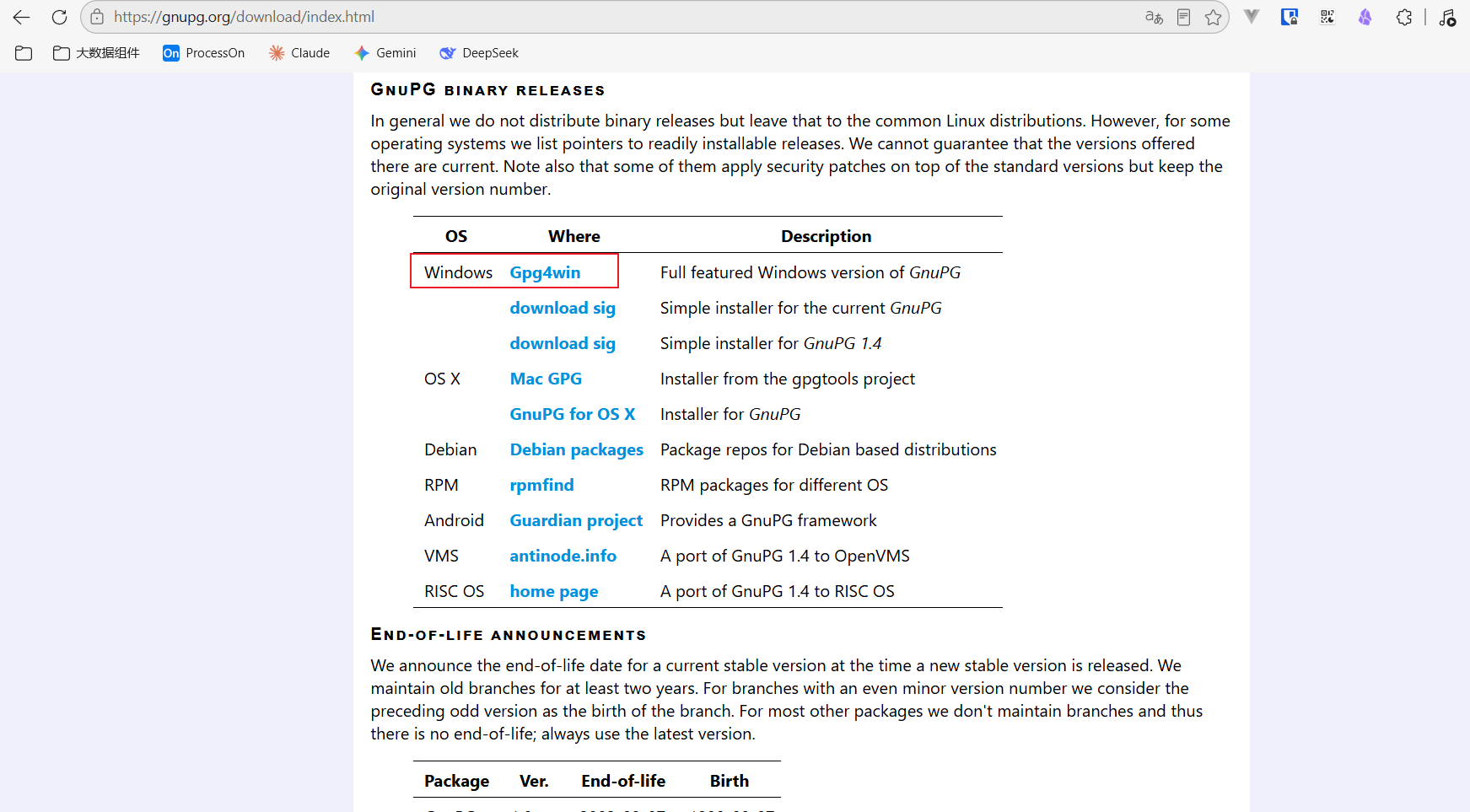
安装GPG工具,安装成功结果如下图。
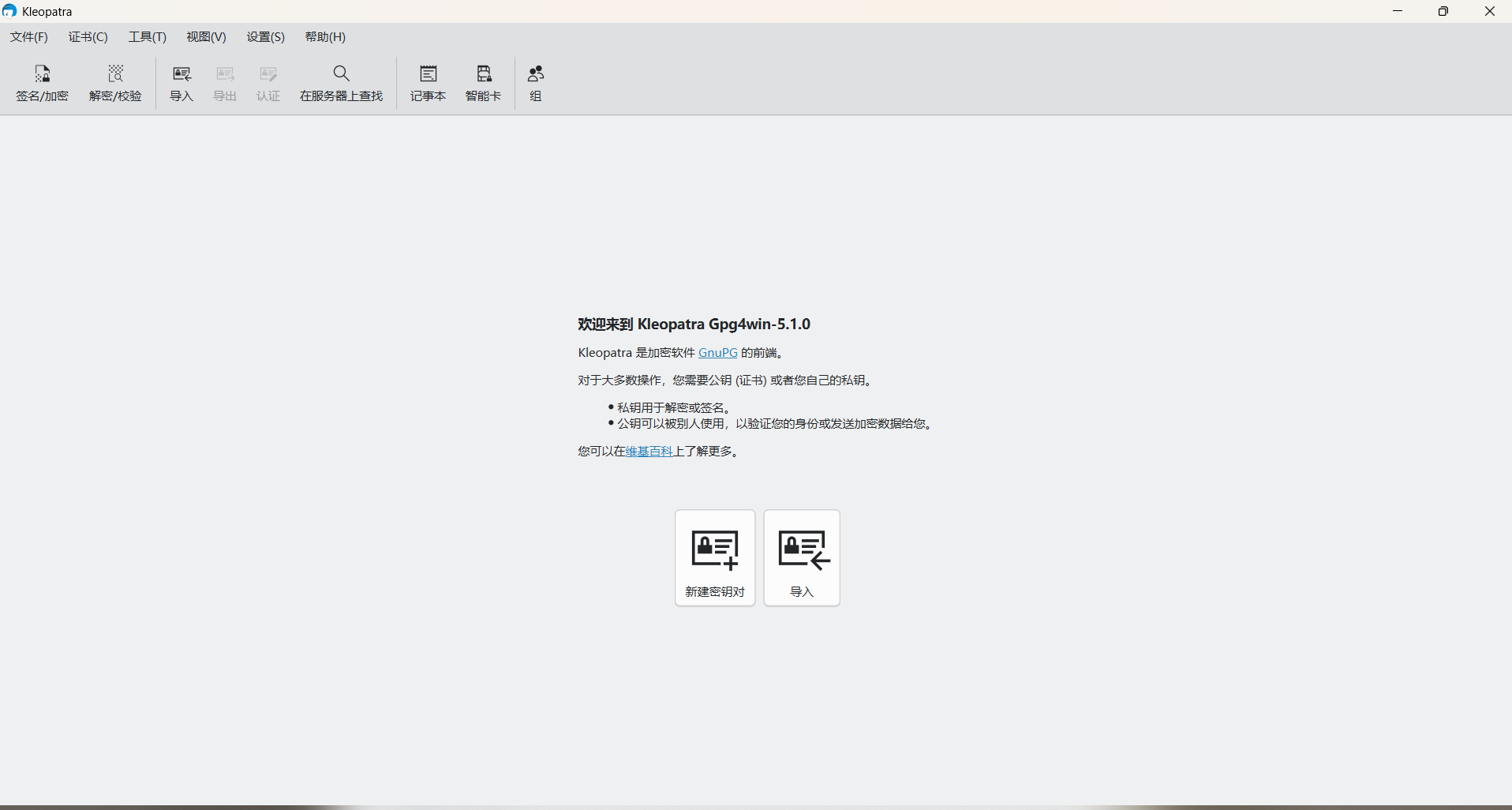
创建签名
在Kleopatra中,点击新建openPGP密钥对。
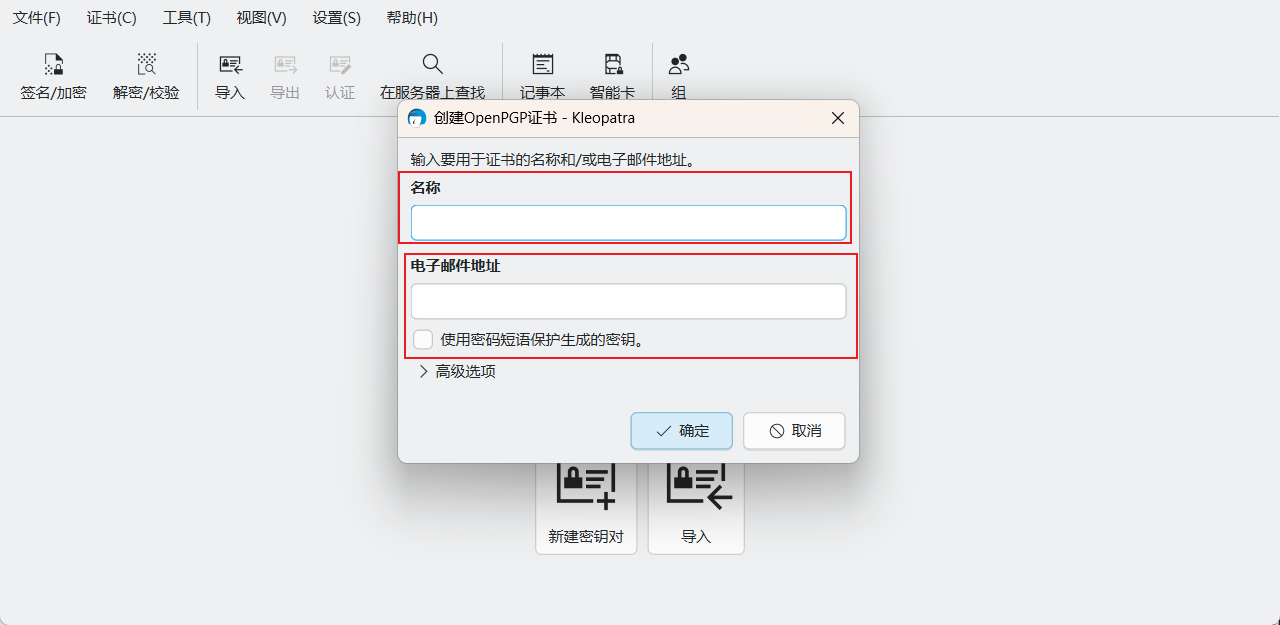
名称:自定义。
电子邮箱地址
使用密码短语保护生成的密钥。:勾选。
密码
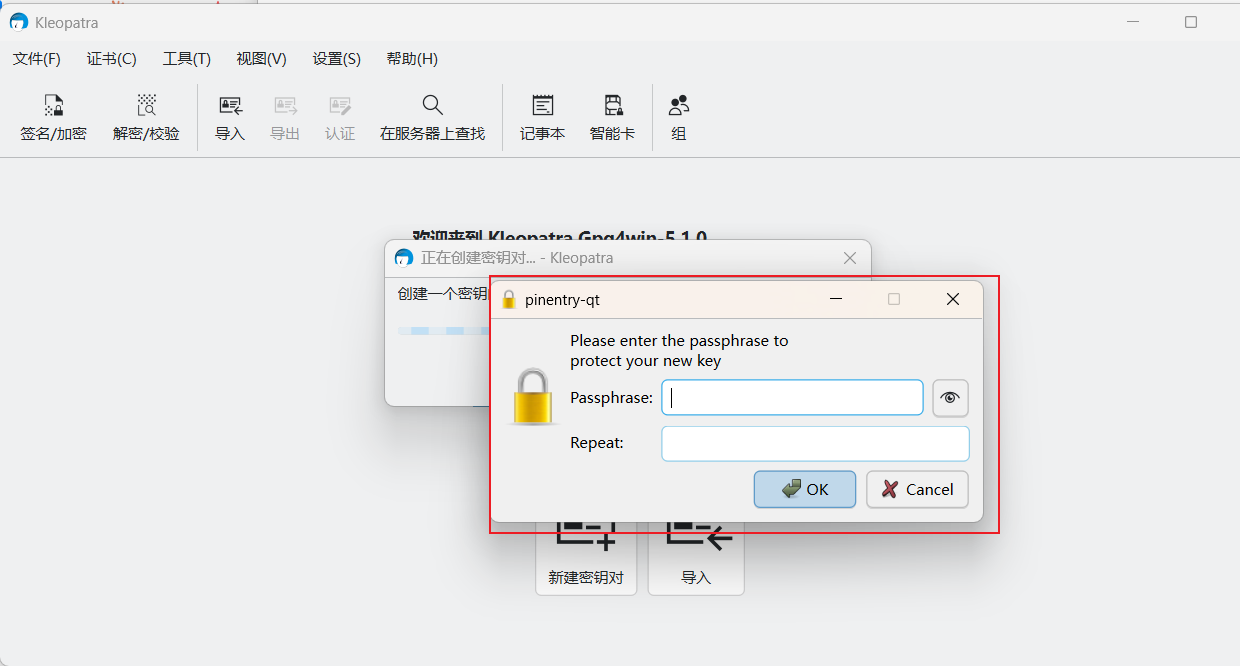
创建成功之后,结果如下:
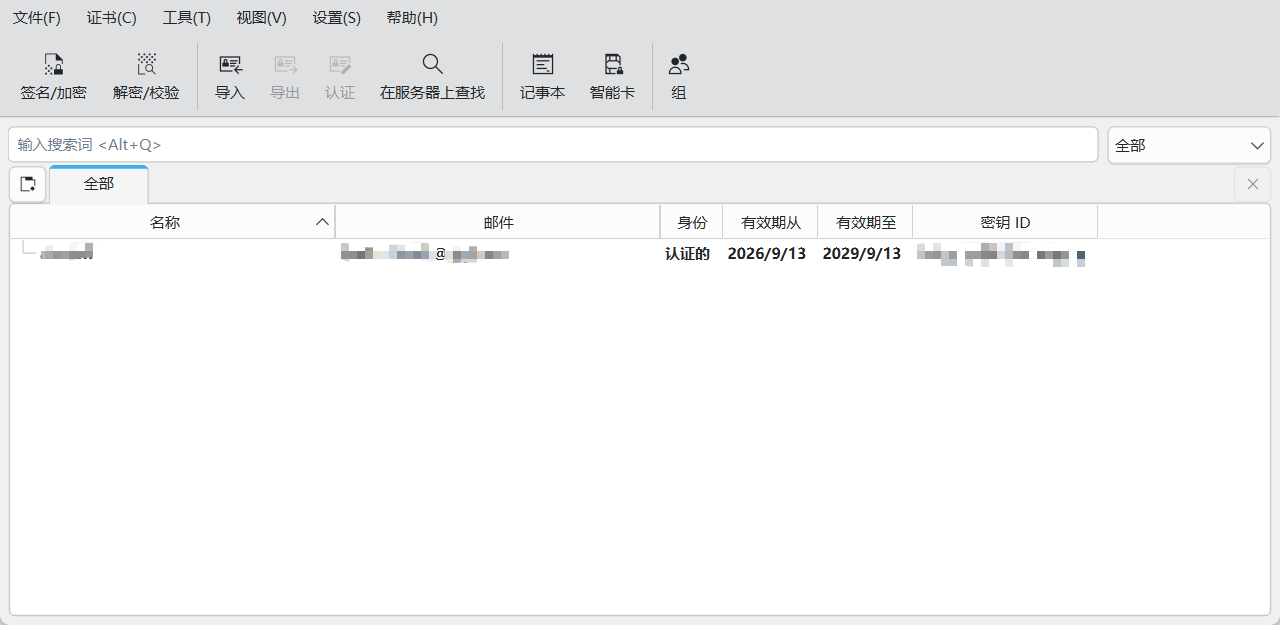
创建成功之后,务必要
备份私钥!!!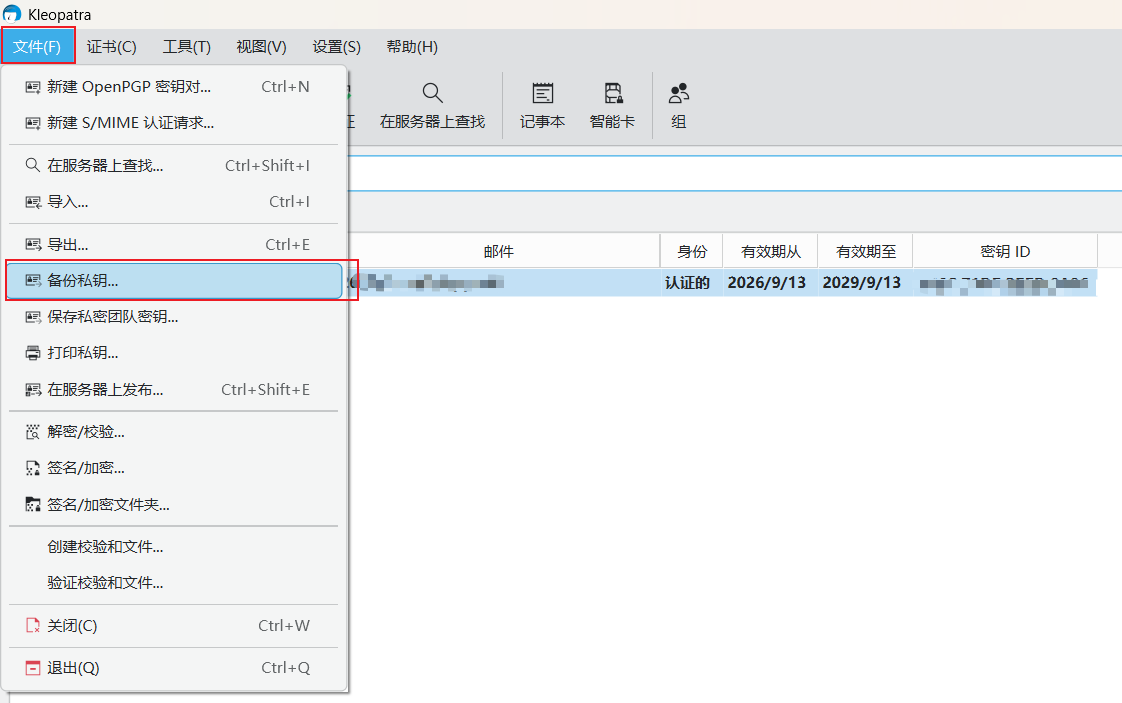
发布证书到服务器
发布
选择指定证书,点击在服务器上发布。
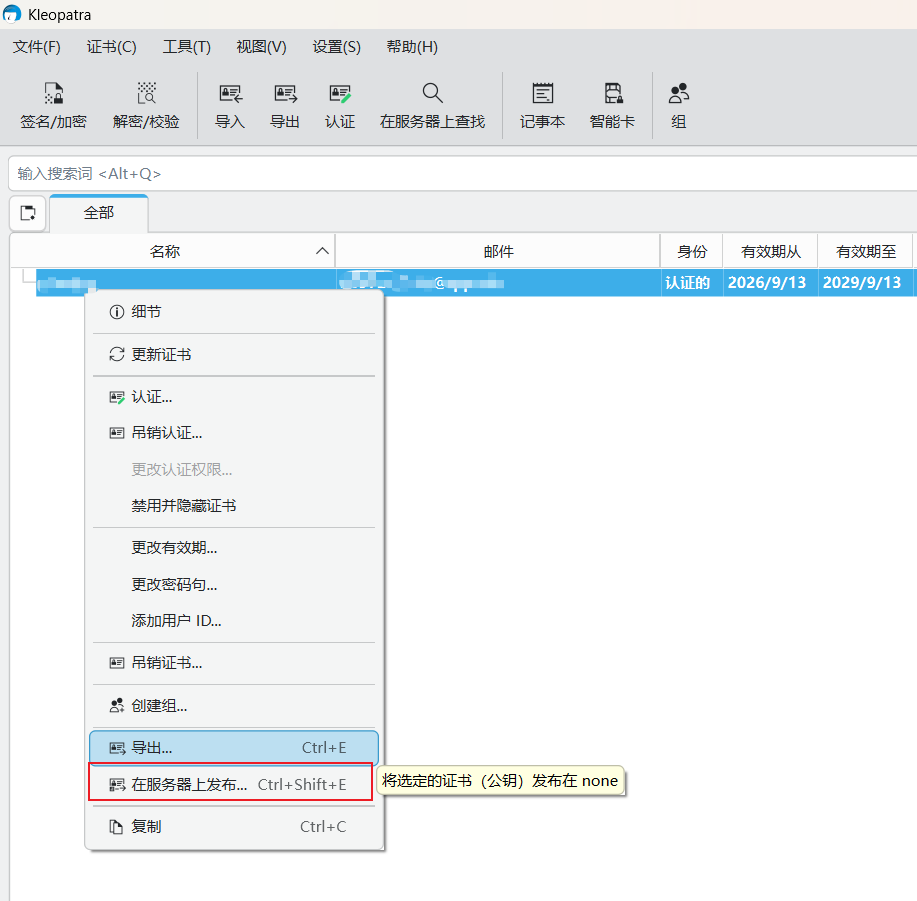
验证
发布成功后,点击在服务器上查找。通过邮箱查找,看一下是否发布成功。
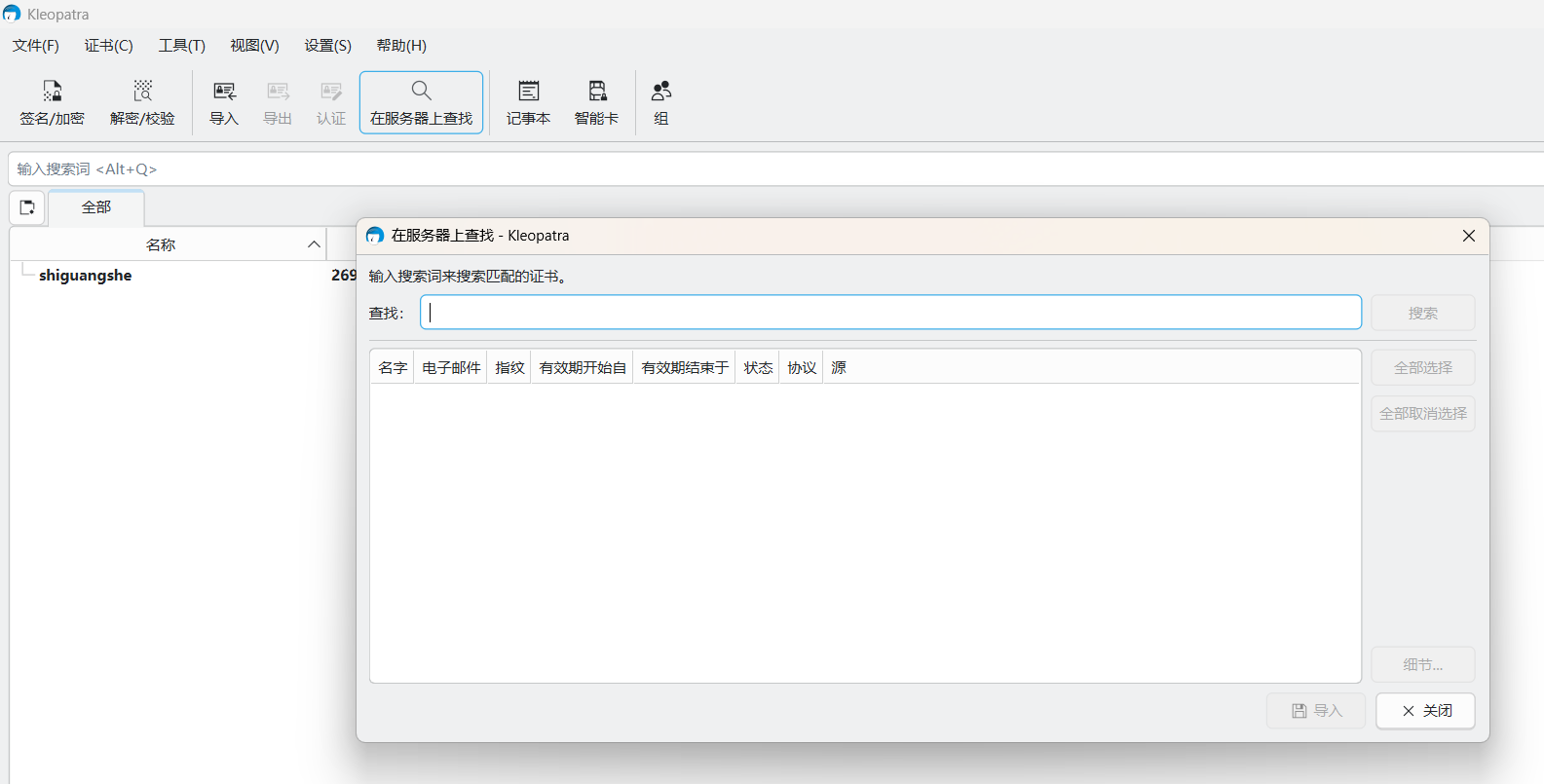
注意:点击搜索后,会导致Kleopatra 把服务器上的纯公钥下载到了本地。直接显示了这个纯公钥版本,私钥变成了
n/a。所以务必提前备份私钥!!!
问题与解决方案
如果
发布证书到服务器遇到无法将证书导出到密钥服务器,因为密钥服务器的使用已被明确禁用这个错误,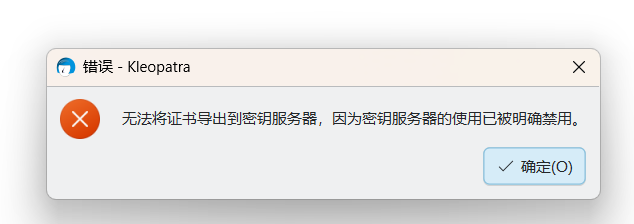
解决步骤如下:
点击顶部菜单栏的
设置(S),然后选择配置 Kleopatra。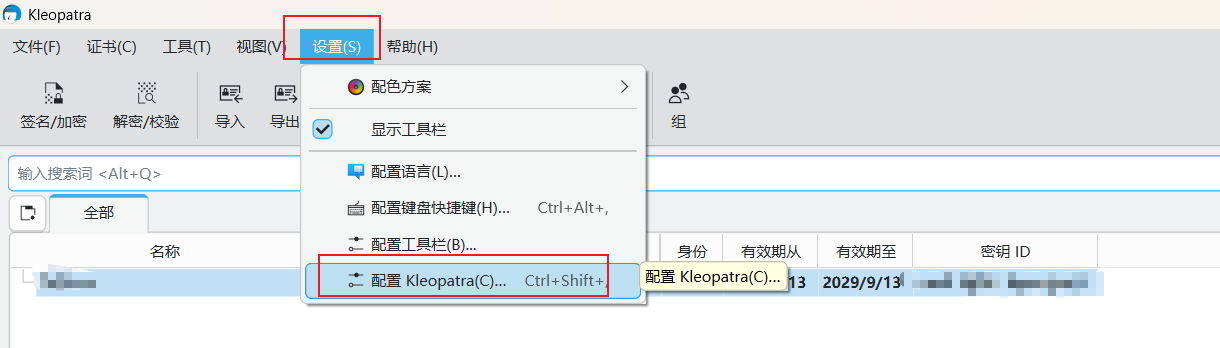
点击勾选
使用 OpenPGP 密钥服务器,在OpenPGP 密钥服务器:中填入hkps://keys.openpgp.org或hkps://keyserver.ubuntu.com。点击应用,然后点击确定。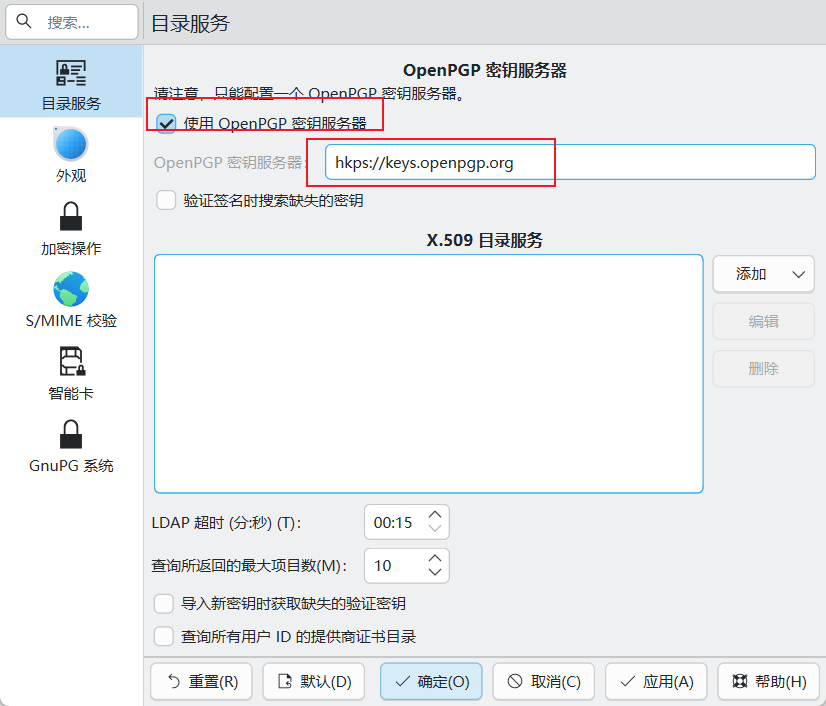
重试
发布证书到服务器,会出现警告在将您的证书导出到公共目录服务器之前,请确保您已创建吊销证书,以便在证书被泄露、丢失或您忘记密码时可以吊销该证书。 您确定要继续吗?。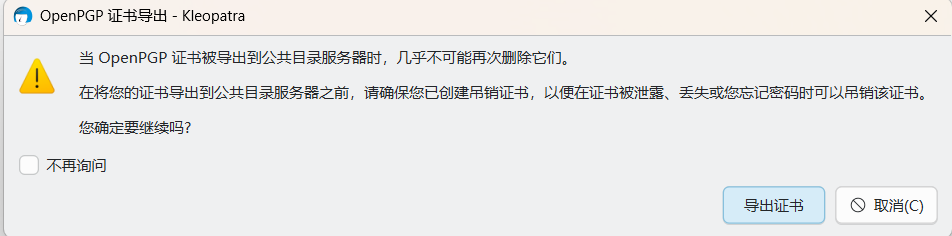
原因:OpenPGP 的公共目录服务器(如 keys.openpgp.org)是去中心化的,一旦你把公钥上传上去,它就会被同步到全球各地的服务器上。你几乎无法将其彻底删除。因此,系统在提醒你:上传前请务必确认你已经创建了吊销证书,万一以后私钥泄露或忘记密码,你还可以通过吊销证书来声明该密钥作废。
生成
吊销证书。选中证书,点击细节,然后点击生成吊销证书。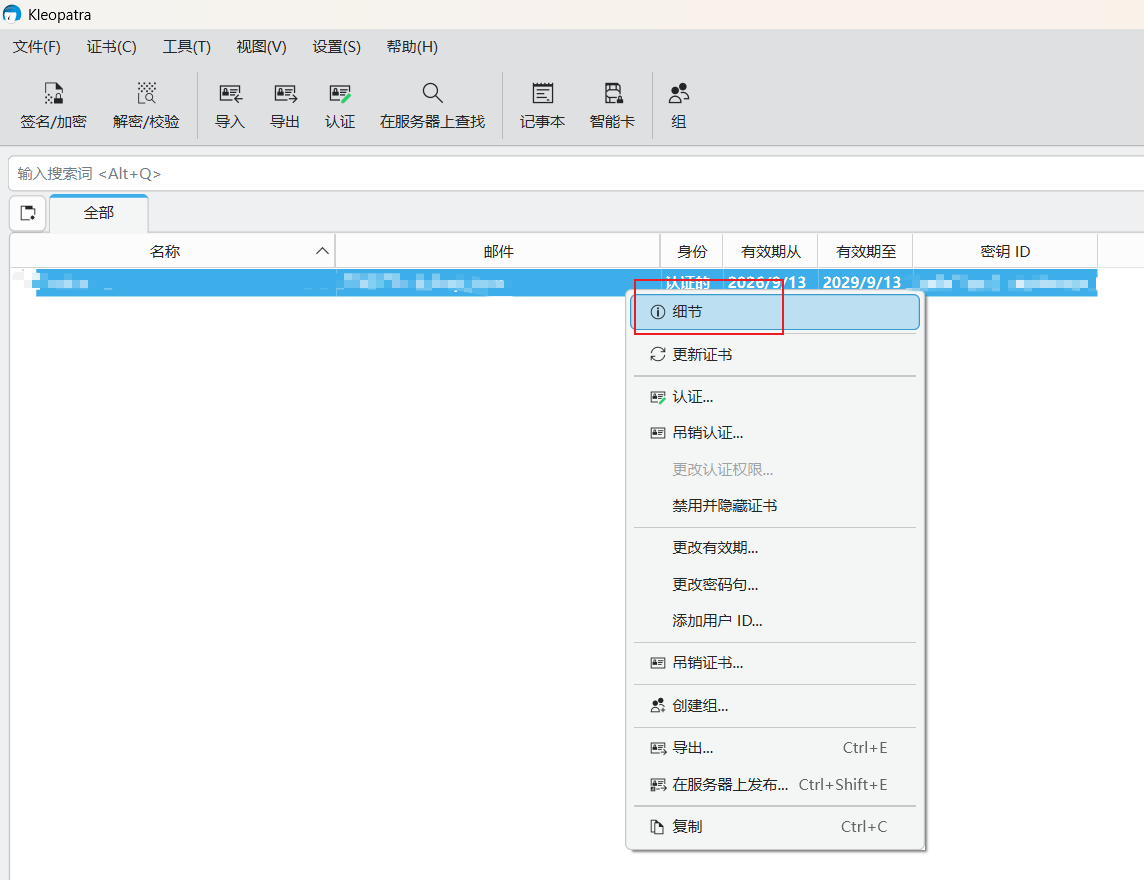
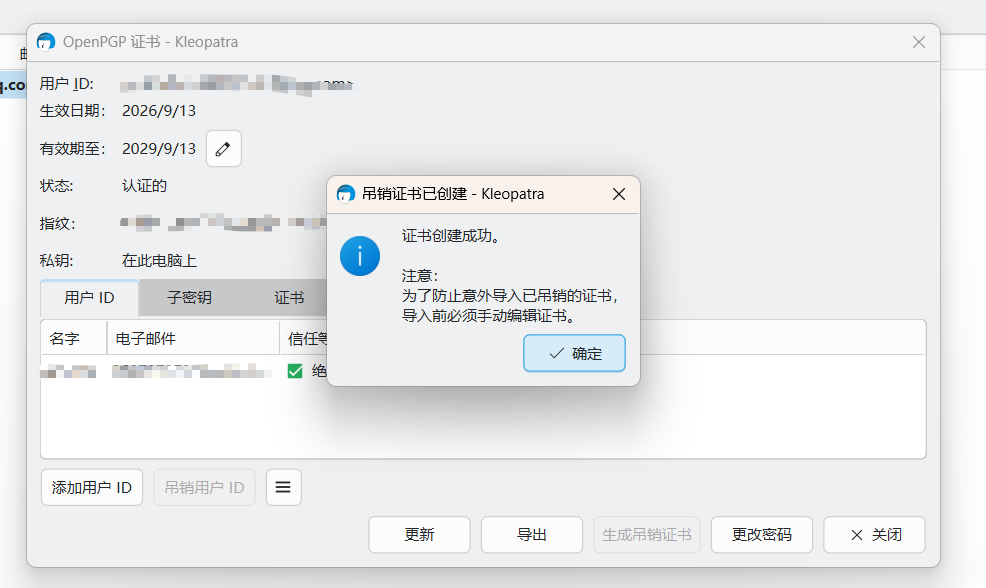
再次重新发布,并在提示框中点击
导出证书。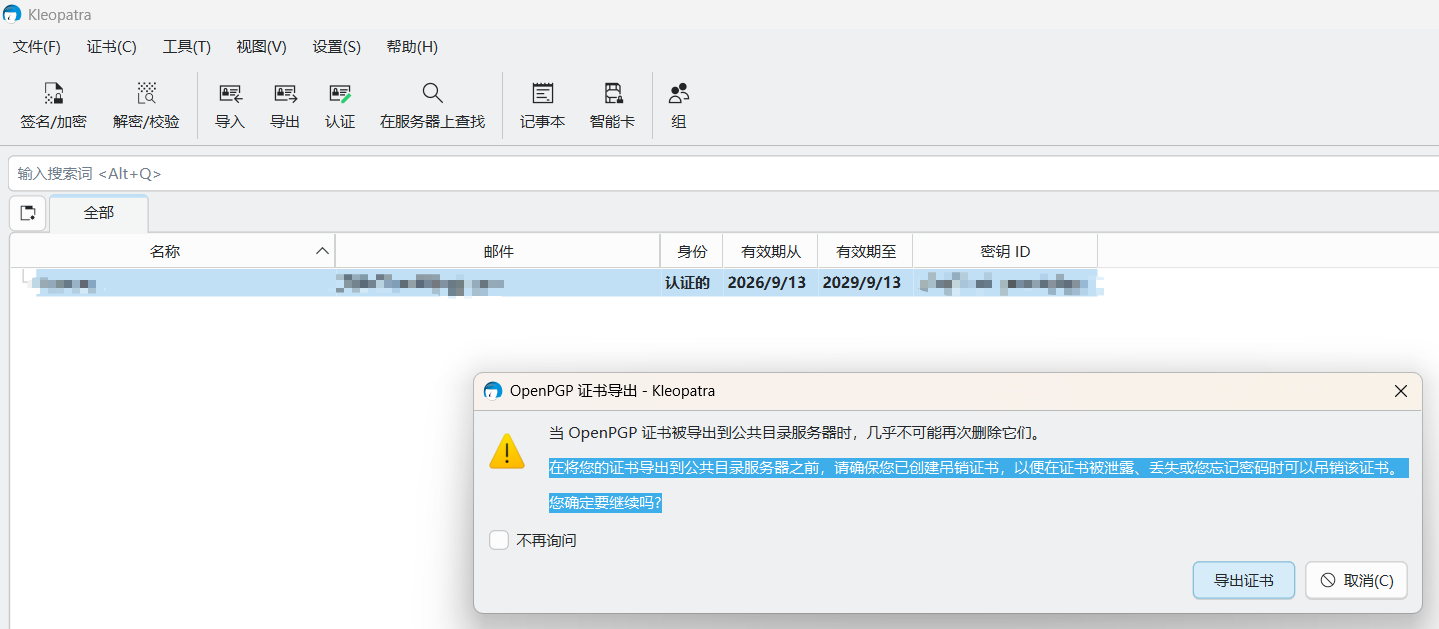
点击后,Kleopatra 就会把你的公钥上传到你设置的公共密钥服务器(
keys.openpgp.org),成功之后结果如下图。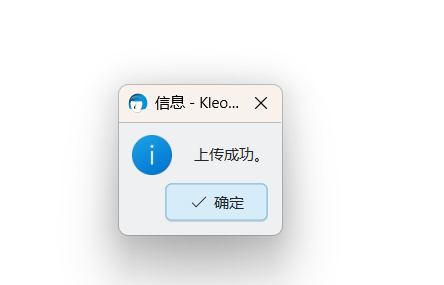
注意:可能需要邮箱验证(如果是首次发布到
keys.openpgp.org):这个服务器会给你证书里的邮箱发一封验证邮件。你需要登录邮箱,点击邮件里的确认链接,别人才能在服务器上搜索到你的公钥。
登录maven central repository
进入maven中央仓库官网(Maven Central),使用github账号登录maven中央仓库。
登录你的github账号 »> https://github.com/
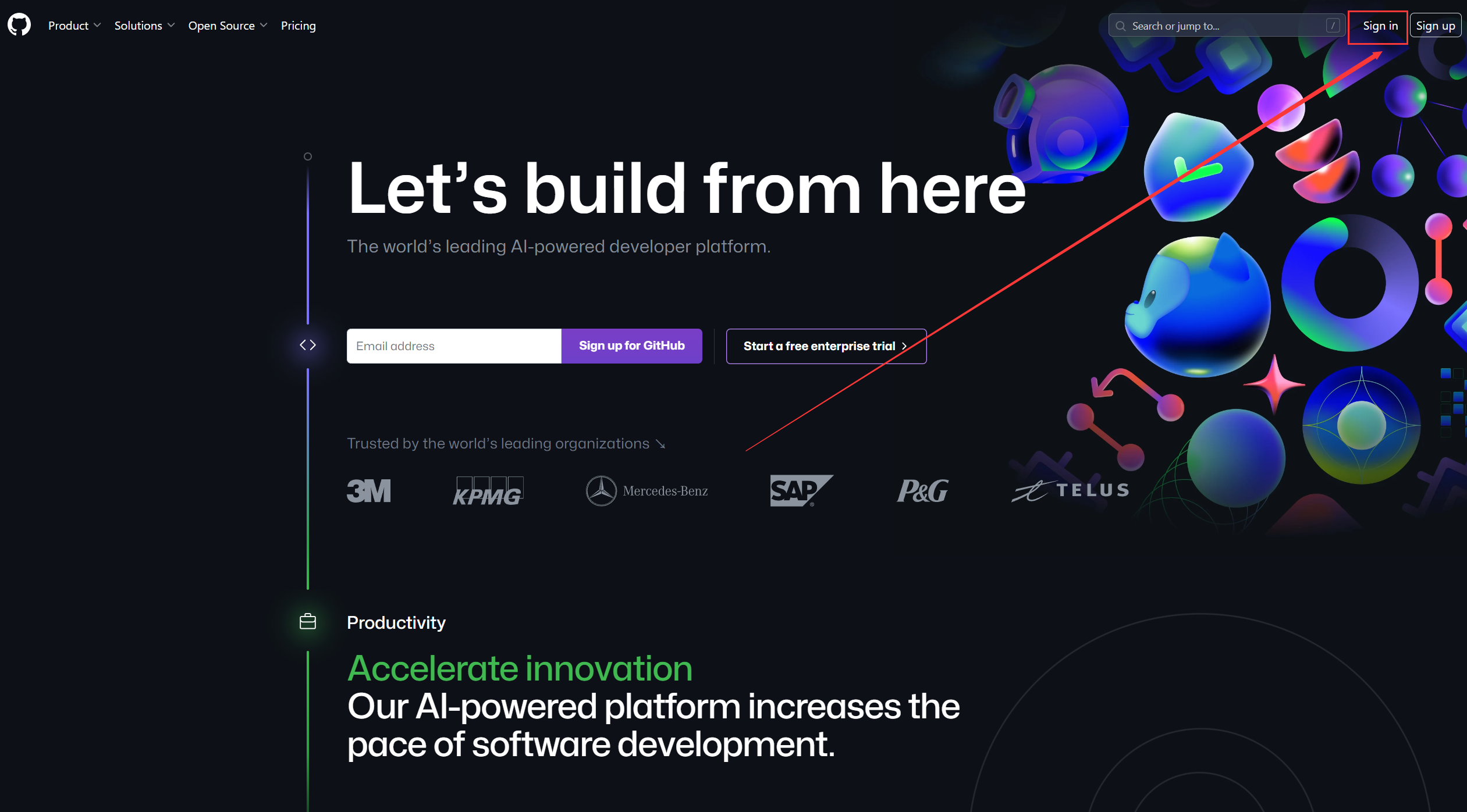
登录完成之后 前去新版本maven中央仓库上传地址
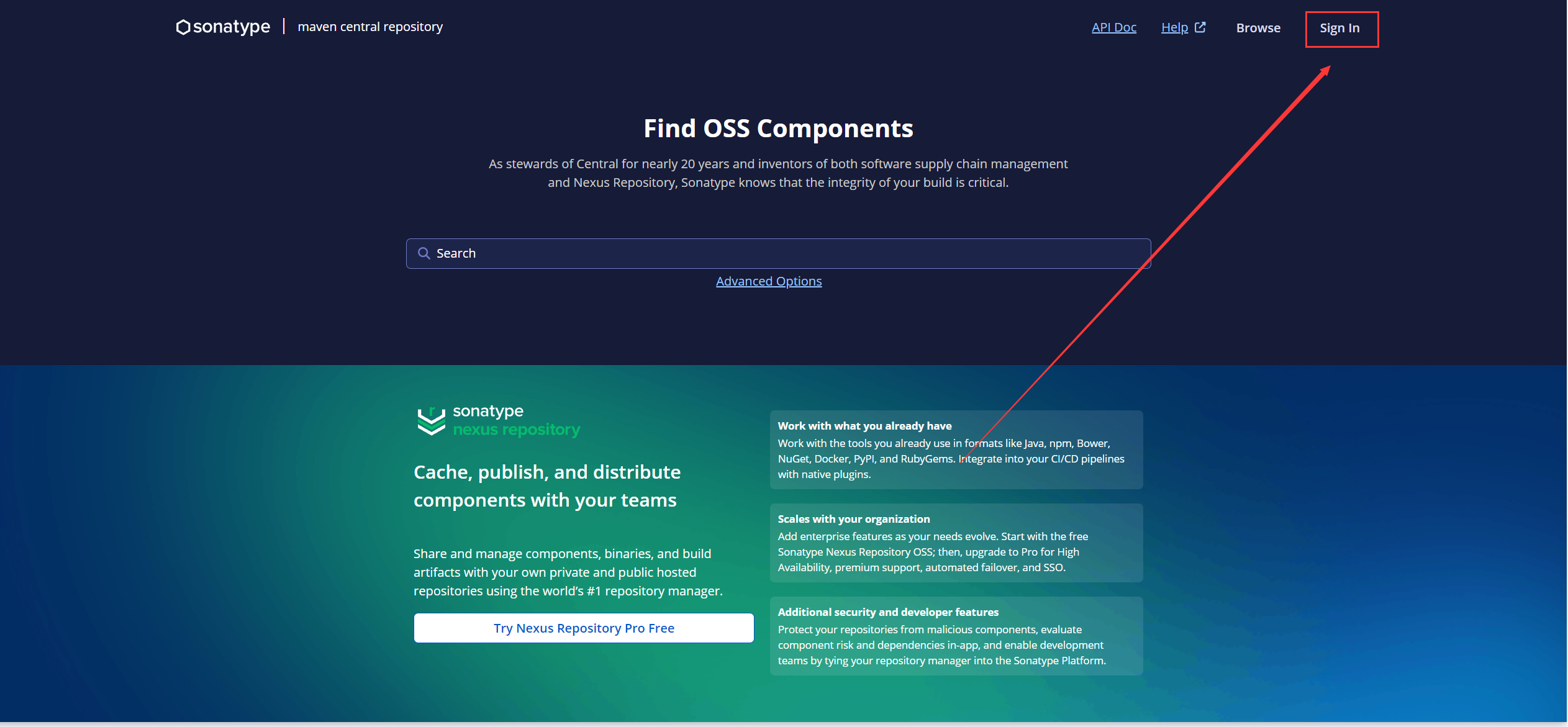
选择你的github账号进行登录
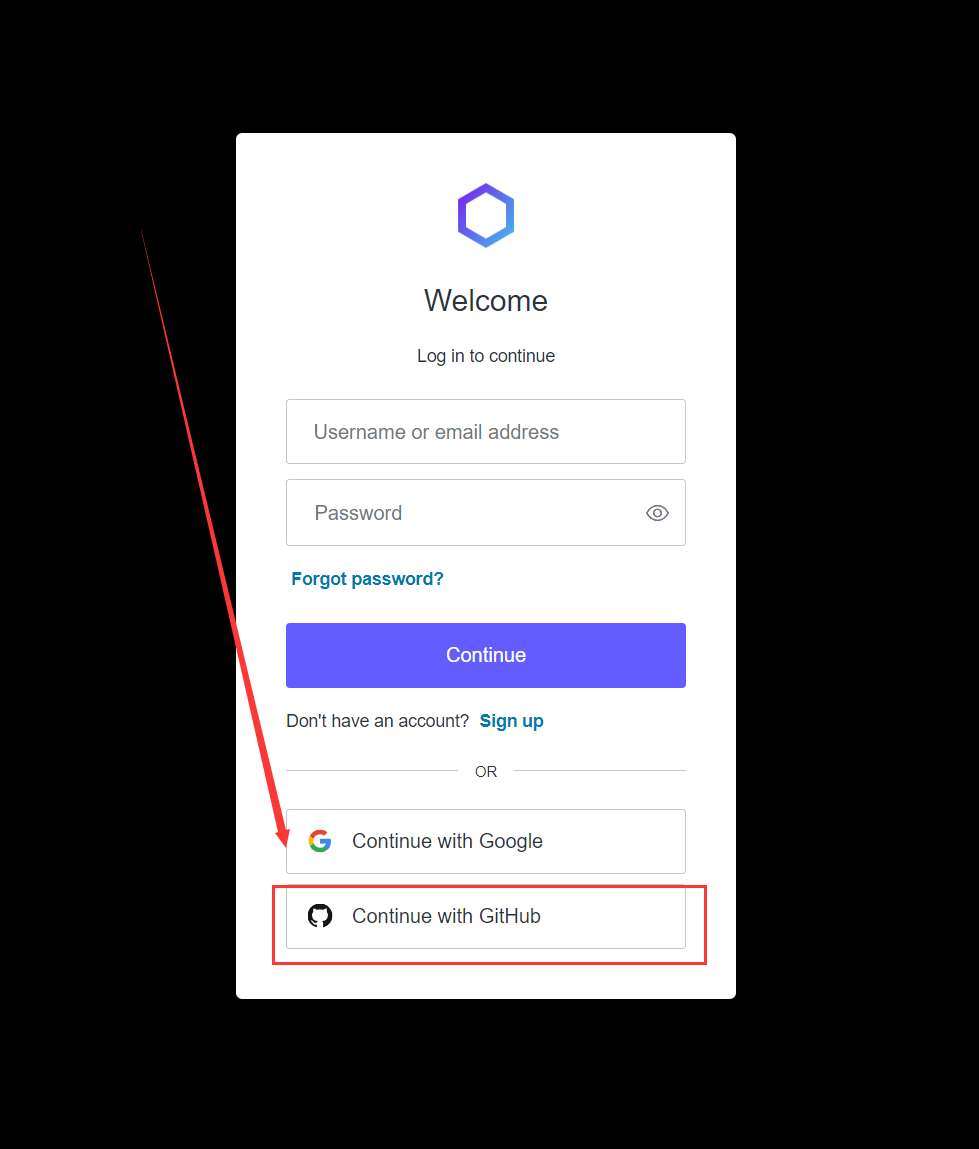
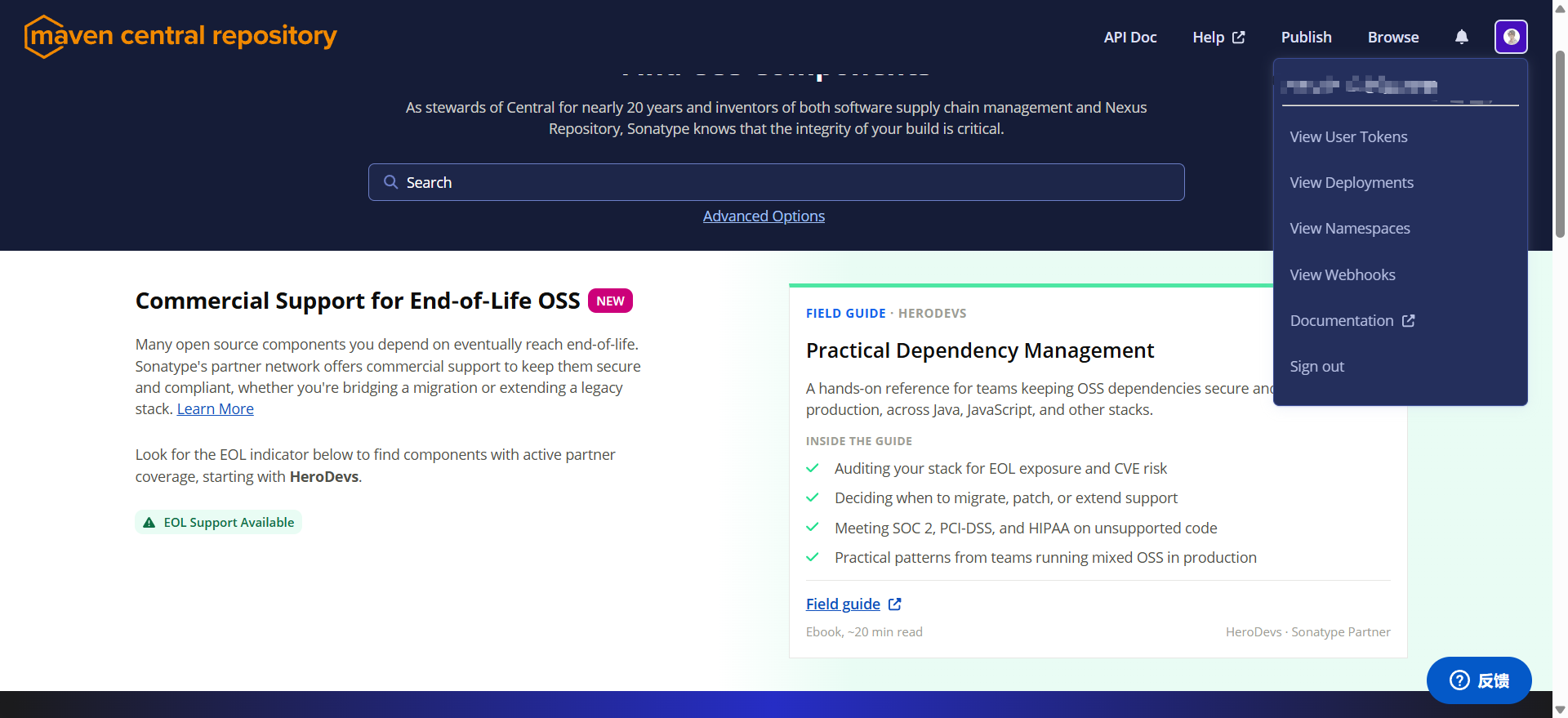
登录成功后,结果如下图。
获取token
创建Token
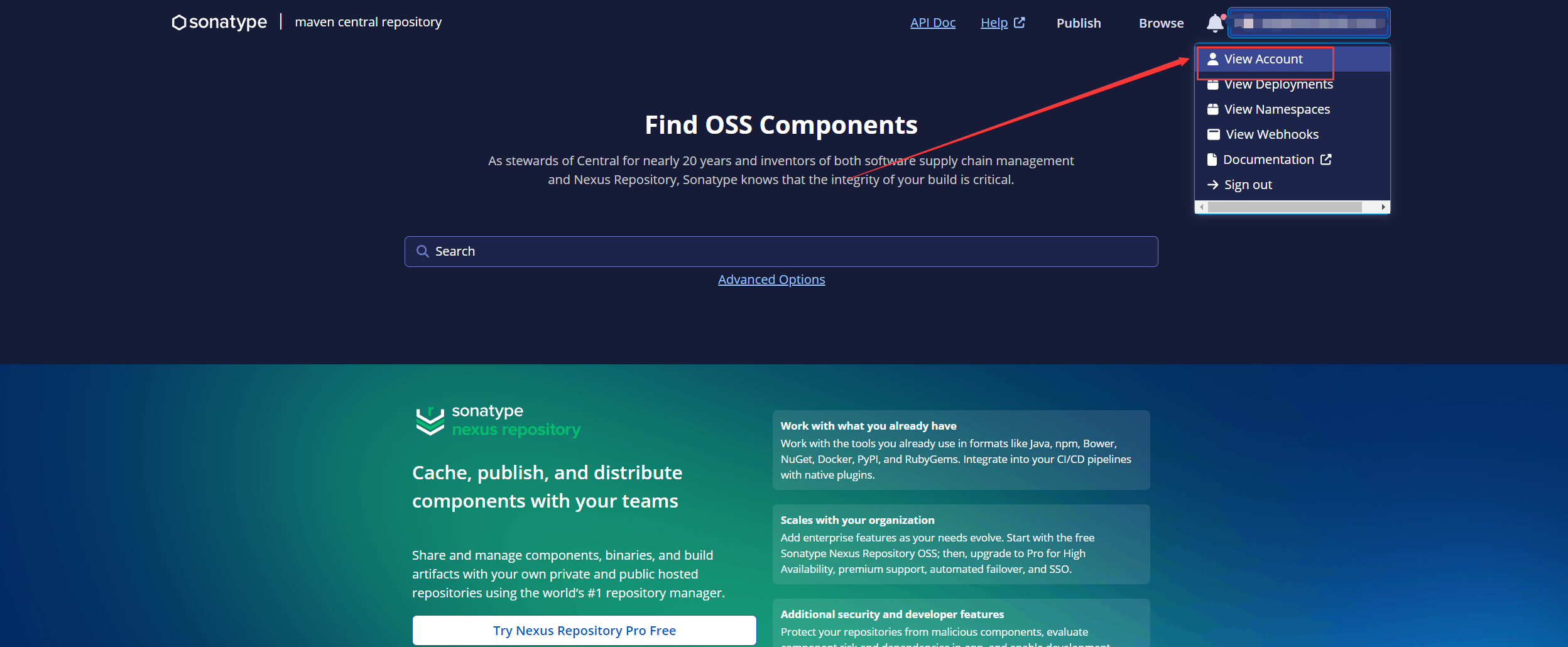
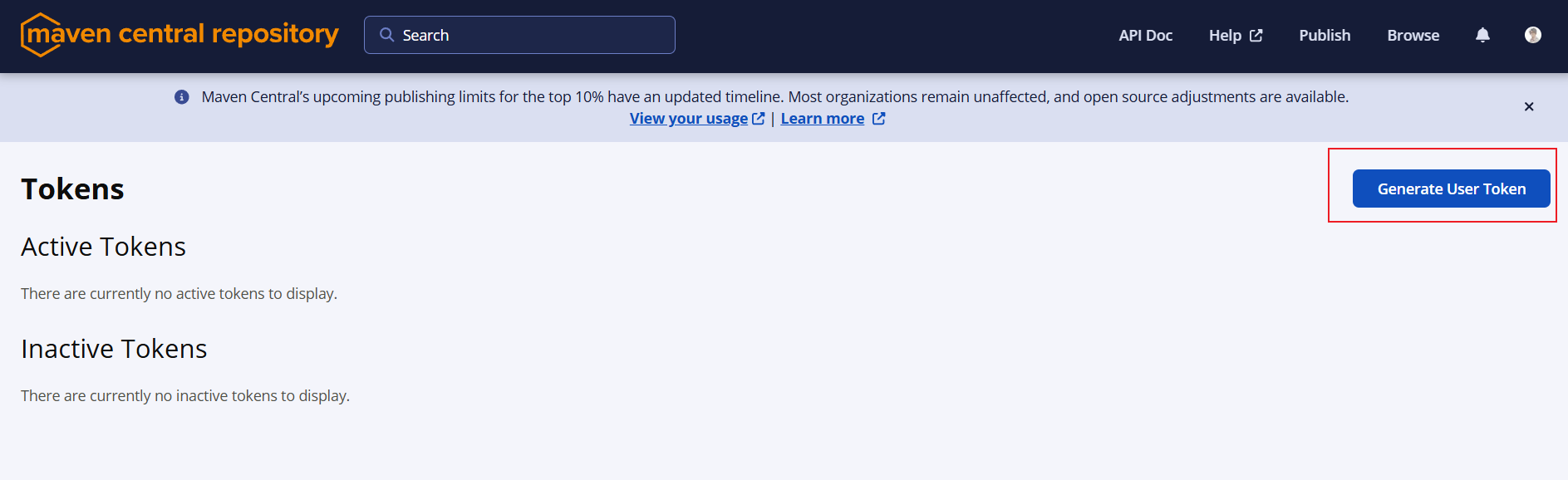
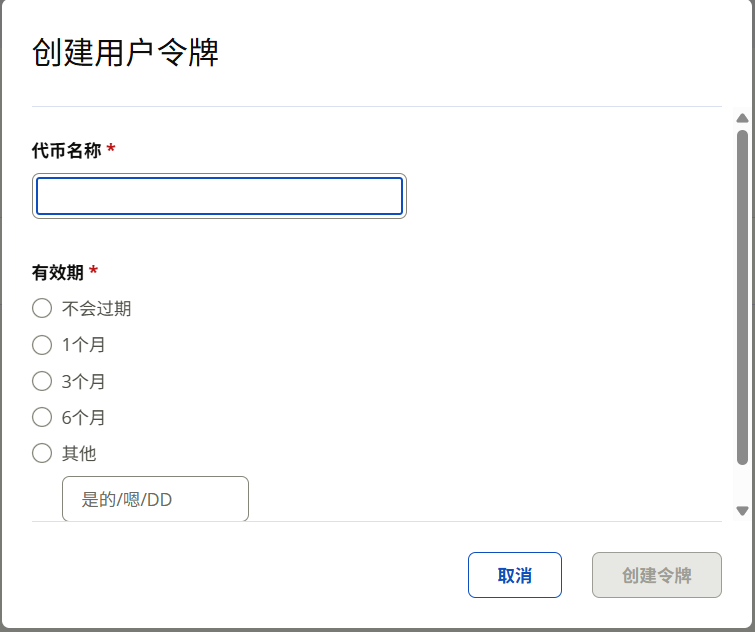
点击View User Tokens,然后点击Generate User Token,创建Token。
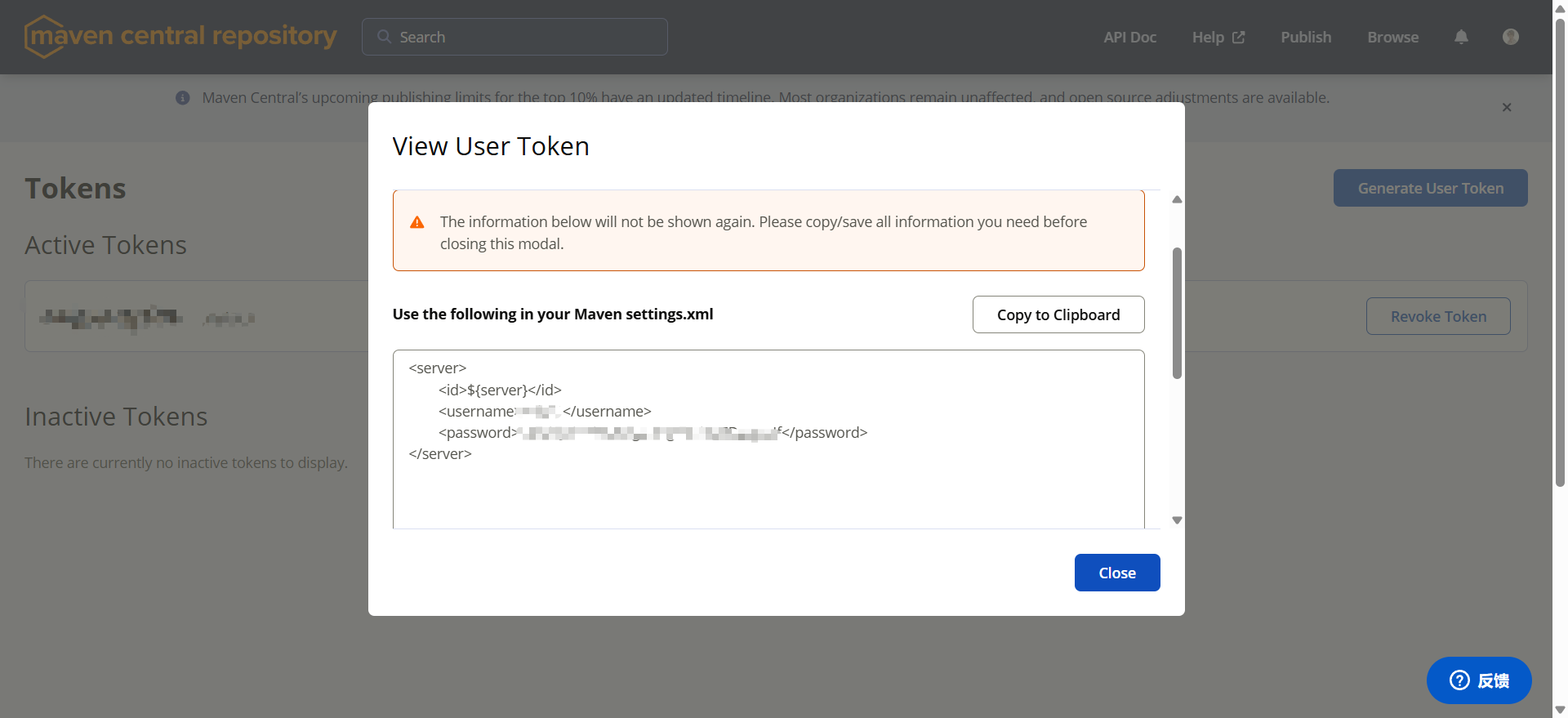
复制token
创建成功后,如下图所示,然后复制Token。
添加Token到Maven的setting.xml文件
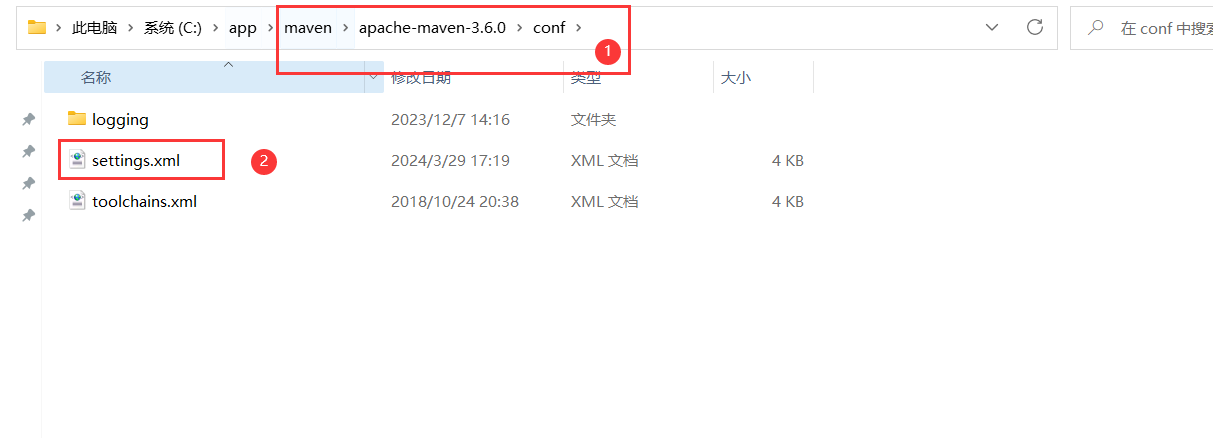
打开maven下的setting.xml文件。
将刚刚的token复制到setting.xml文件中,并修改id为
central。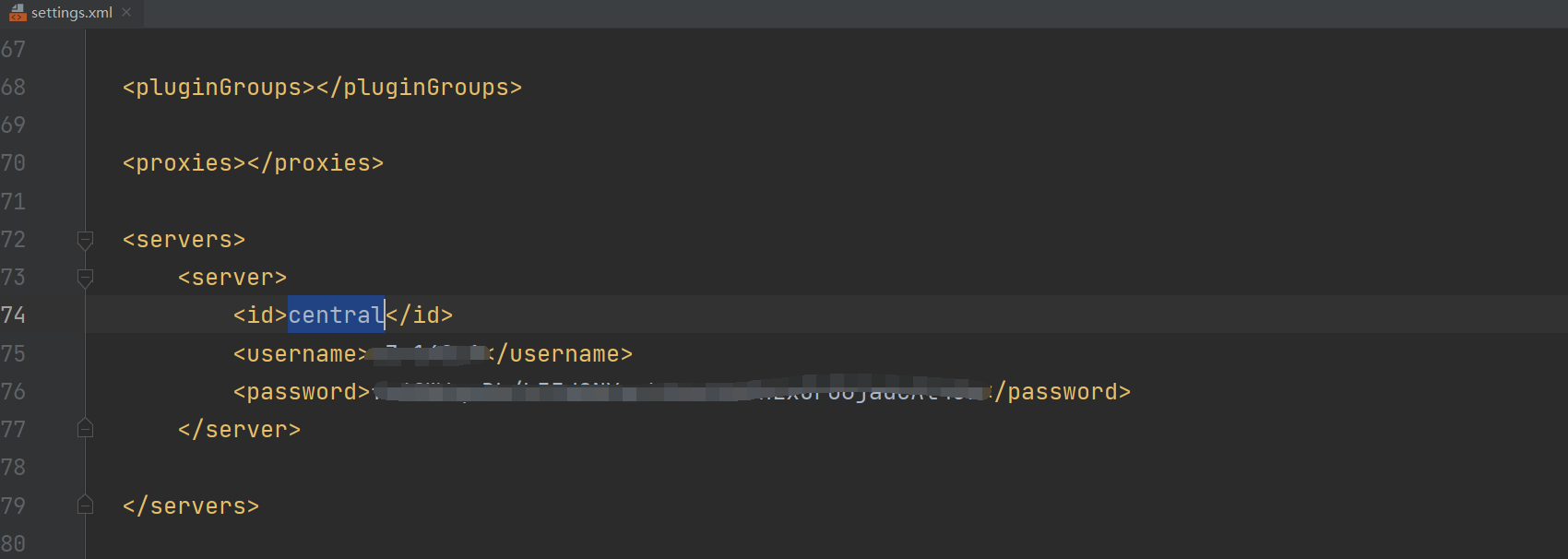
创建Maven项目
创建Maven项目
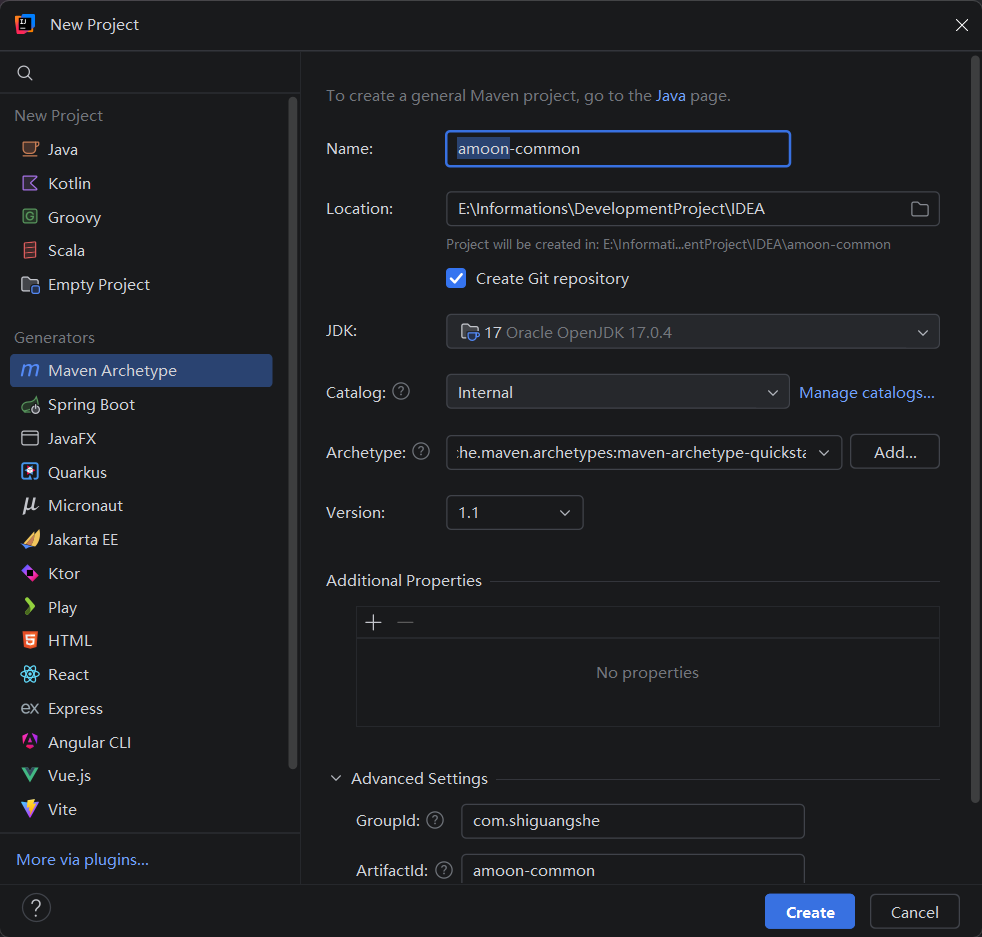
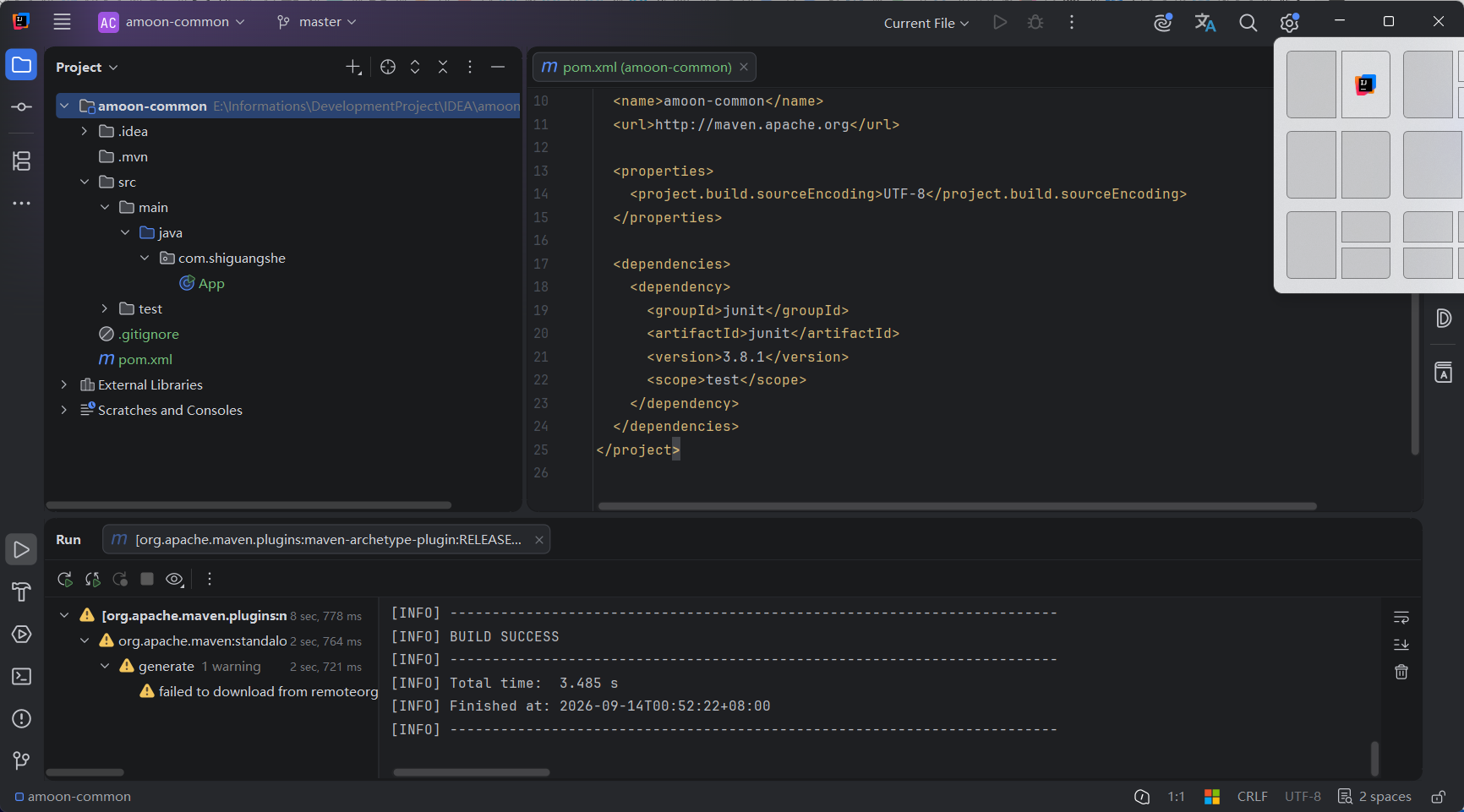
在idea中,创建maven项目。
添加配置到pom.xml文件
<project xmlns="http://maven.apache.org/POM/4.0.0" xmlns:xsi="http://www.w3.org/2001/XMLSchema-instance"
  xsi:schemaLocation="http://maven.apache.org/POM/4.0.0 http://maven.apache.org/xsd/maven-4.0.0.xsd">
  <modelVersion>4.0.0</modelVersion>

  <groupId>io.github.dreampathway</groupId>
  <artifactId>amoon-common</artifactId>
  <version>1.0.0</version>
  <packaging>jar</packaging>

  <name>${project.groupId}:${project.artifactId}</name>
  <url>你的项目仓库地址</url>
  <description>描述信息</description>

  <properties>
    <project.build.sourceEncoding>UTF-8</project.build.sourceEncoding>
    <maven.compiler.source>17</maven.compiler.source>
    <maven.compiler.target>17</maven.compiler.target>
  </properties>

  <!-- 项目许可证,使用协议 -->
  <licenses>
    <license>
      <name>The Apache License, Version 2.0</name>
      <url>http://www.apache.org/licenses/LICENSE-2.0.txt</url>
    </license>
  </licenses>
  <!-- 项目开发者 -->
  <developers>
    <developer>
      <name>作者名称</name>
      <email>你github的邮箱</email>
      <organization>Sonatype</organization>
      <organizationUrl>http://www.sonatype.com</organizationUrl>
    </developer>
  </developers>

  <!-- SCM (Software Configuration Management) 配置:声明项目源代码的版本控制地址 -->
  <scm>
    <!-- 只读连接,用于别人克隆代码 -->
    <connection>scm:git:git://github.com/你的github账号/你的项目名称.git</connection>
    <!-- 开发者连接,用于你推送代码,使用 SSH 协议 -->
    <developerConnection>scm:git:ssh://git@github.com/你的github账号/你的项目名称.git</developerConnection>
    <!-- 浏览器查看地址,注意这里加了 .git 后缀,有的审核工具会校验 -->
    <url>https://github.com/你的github账号/你的项目名称</url>
  </scm>

   <!-- 发布地址 -->
  <distributionManagement>
    <snapshotRepository>
      <id>ossrh</id>
      <url>https://s01.oss.sonatype.org/content/repositories/snapshots</url>
    </snapshotRepository>
    <repository>
      <id>ossrh</id>
      <url>https://s01.oss.sonatype.org/service/local/staging/deploy/maven2</url>
    </repository>
  </distributionManagement>

  <build>
    <plugins>
      <!--    Maven插件发布    -->
      <plugin>
        <groupId>org.sonatype.central</groupId>
        <artifactId>central-publishing-maven-plugin</artifactId>
        <version>0.11.0</version>
        <extensions>true</extensions>
        <configuration>
          <publishingServerId>central</publishingServerId>
          <autoPublish>false</autoPublish>
        </configuration>
      </plugin>

      <!--    签名插件        -->
      <plugin>
        <groupId>org.apache.maven.plugins</groupId>
        <artifactId>maven-gpg-plugin</artifactId>
        <version>1.5</version>
        <executions>
          <execution>
            <id>sign-artifacts</id>
            <phase>verify</phase>
            <goals>
              <goal>sign</goal>
            </goals>
          </execution>
        </executions>
      </plugin>

      <!--     生成源文件       -->
      <plugin>
        <groupId>org.apache.maven.plugins</groupId>
        <artifactId>maven-source-plugin</artifactId>
        <version>2.2.1</version>
        <executions>
          <execution>
            <id>attach-sources</id>
            <goals>
              <goal>jar-no-fork</goal>
            </goals>
          </execution>
        </executions>
      </plugin>
      <!--     生成源javadocs文件       -->
      <plugin>
        <groupId>org.apache.maven.plugins</groupId>
        <artifactId>maven-javadoc-plugin</artifactId>
        <version>2.9.1</version>
        <executions>
          <execution>
            <id>attach-javadocs</id>
            <goals>
              <goal>jar</goal>
            </goals>
          </execution>
        </executions>
      </plugin>

    </plugins>
  </build>

</project>
github创建代码仓库
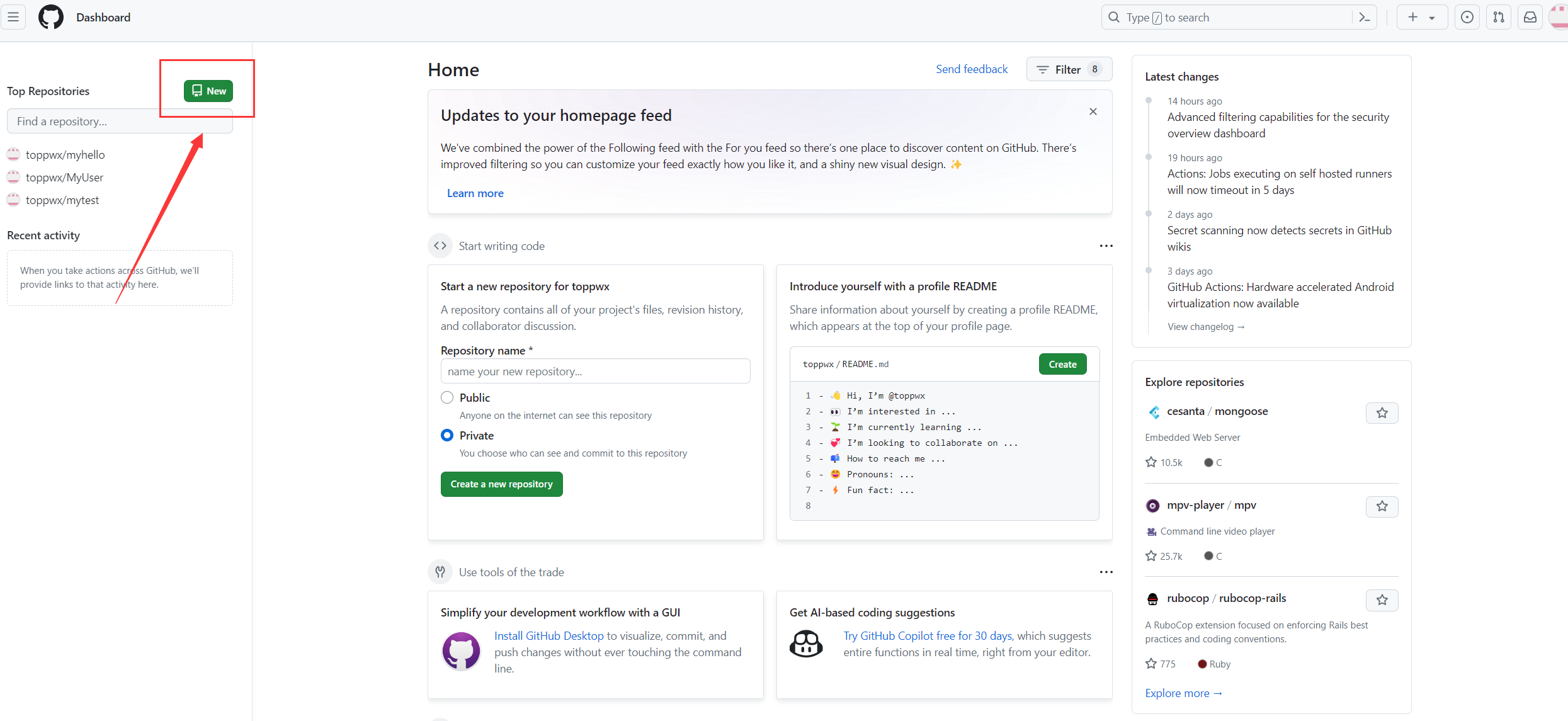
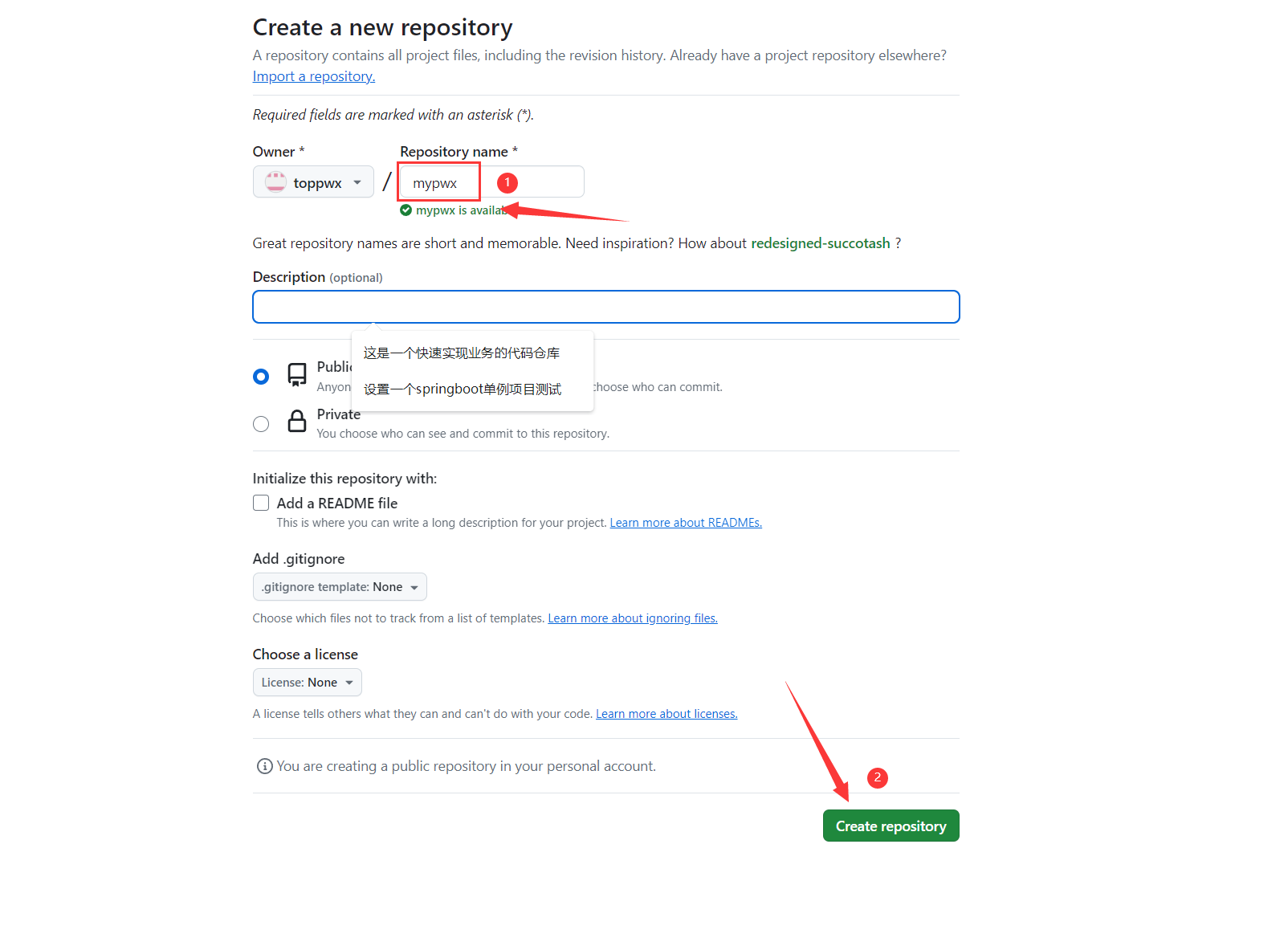
创建远程仓库
将项目共享到远程仓库
将项目与关联远程仓库。
修改pom.xml配置文件
  <groupId>io.github.dreampathway</groupId>
  <artifactId>amoon-common</artifactId>
  <version>1.0.0</version>
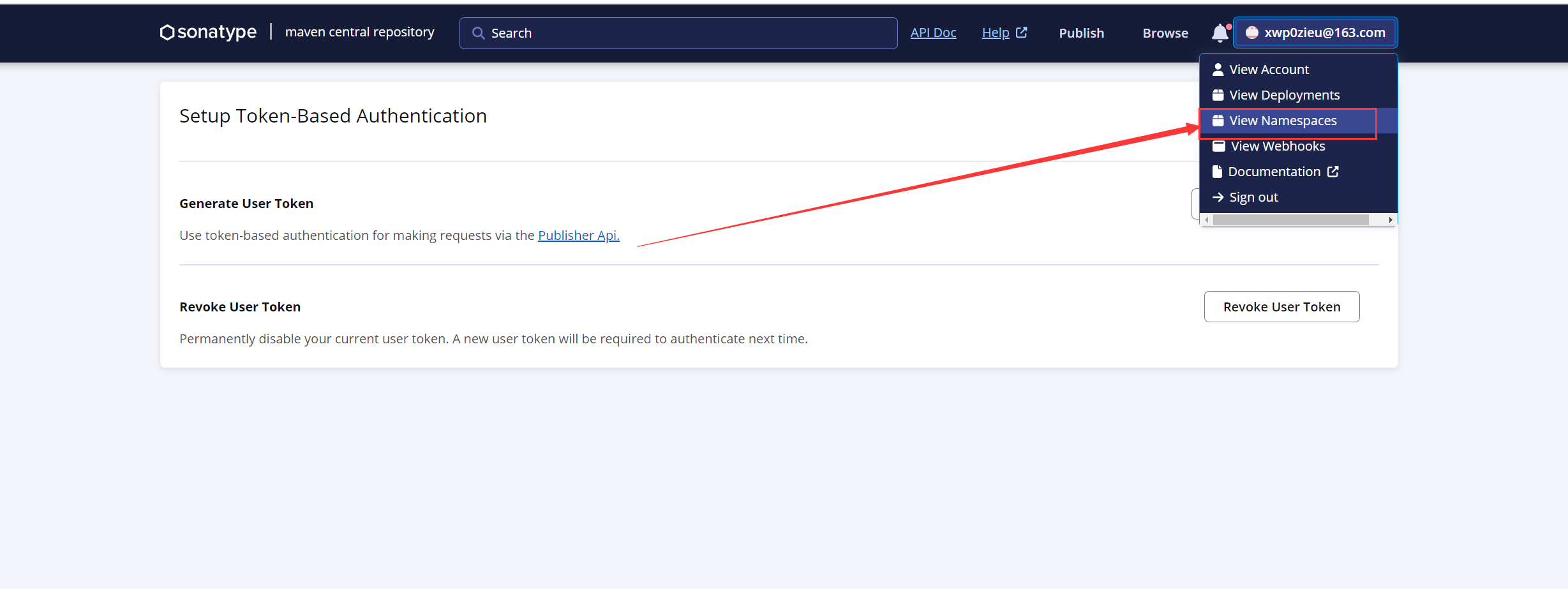
获取groupId
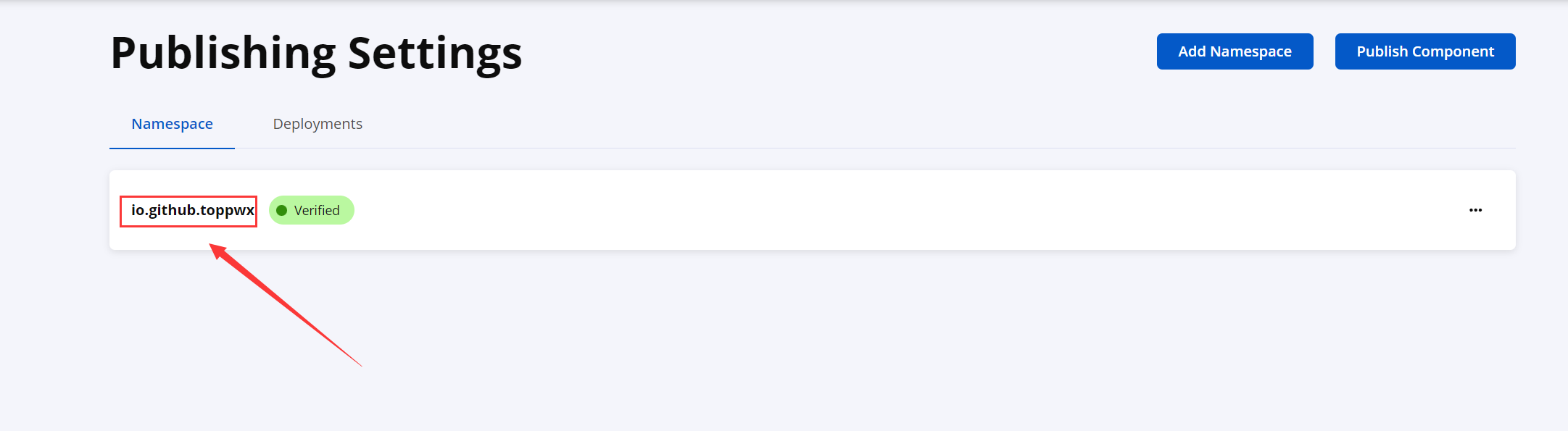
artifactId
项目名称。
version
版本自定义设置即可。
url
填写刚刚创建的远程仓库地址。
<url>你的项目仓库地址</url>
例如:<url>https://github.com/DreamPathway/amoon-common</url>
SCM配置
将项目地址改为刚刚创建的远程仓库项目。
<!-- SCM (Software Configuration Management) 配置:声明项目源代码的版本控制地址 -->
  <scm>
    <!-- 只读连接,用于别人克隆代码 -->
    <connection>scm:git:git://github.com/DreamPathway/amoon-common.git</connection>
    <!-- 开发者连接,用于你推送代码,使用 SSH 协议 -->
    <developerConnection>scm:git:ssh://git@github.com/DreamPathway/amoon-common.git</developerConnection>
    <!-- 浏览器查看地址,注意这里加了 .git 后缀,有的审核工具会校验 -->
    <url>https://github.com/DreamPathway/amoon-common</url>
  </scm>
部署至Maven中央仓库
部署maven项目
点击
deploy,进行部署。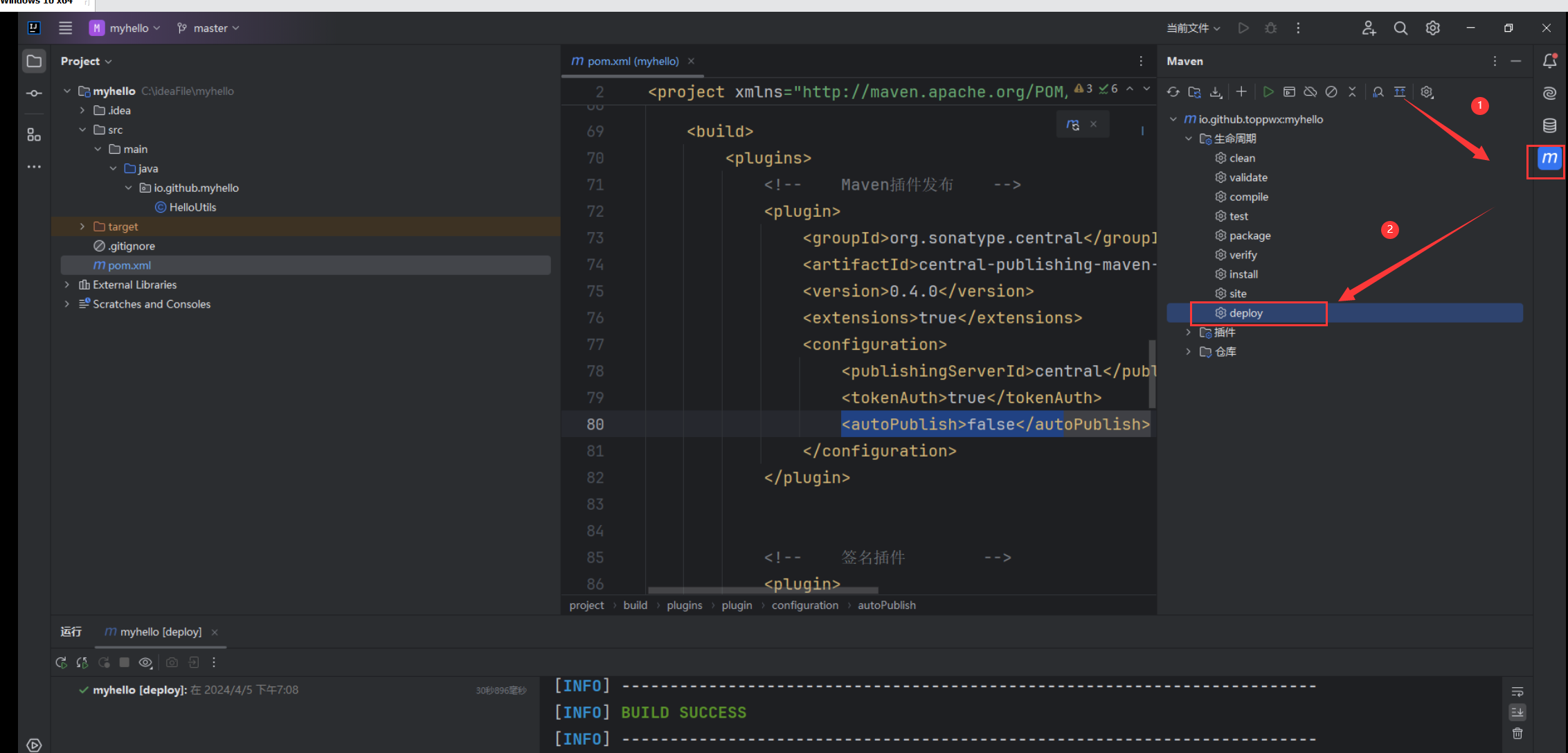
发布时,输入PGP密码。
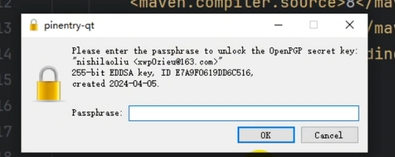
注意:执行发布的时候需要密码要输入(前提是你设置了密钥密码的化则需要输入)
执行编译成功之后的提示
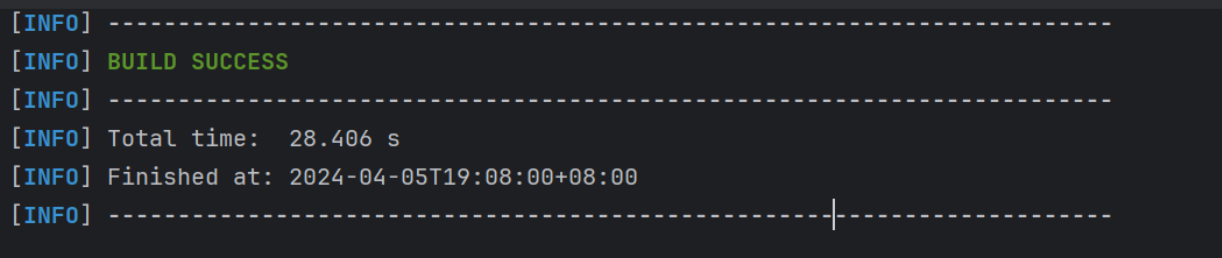
发布
打开maven中央仓库官网,点击
View Deployments,查看部署。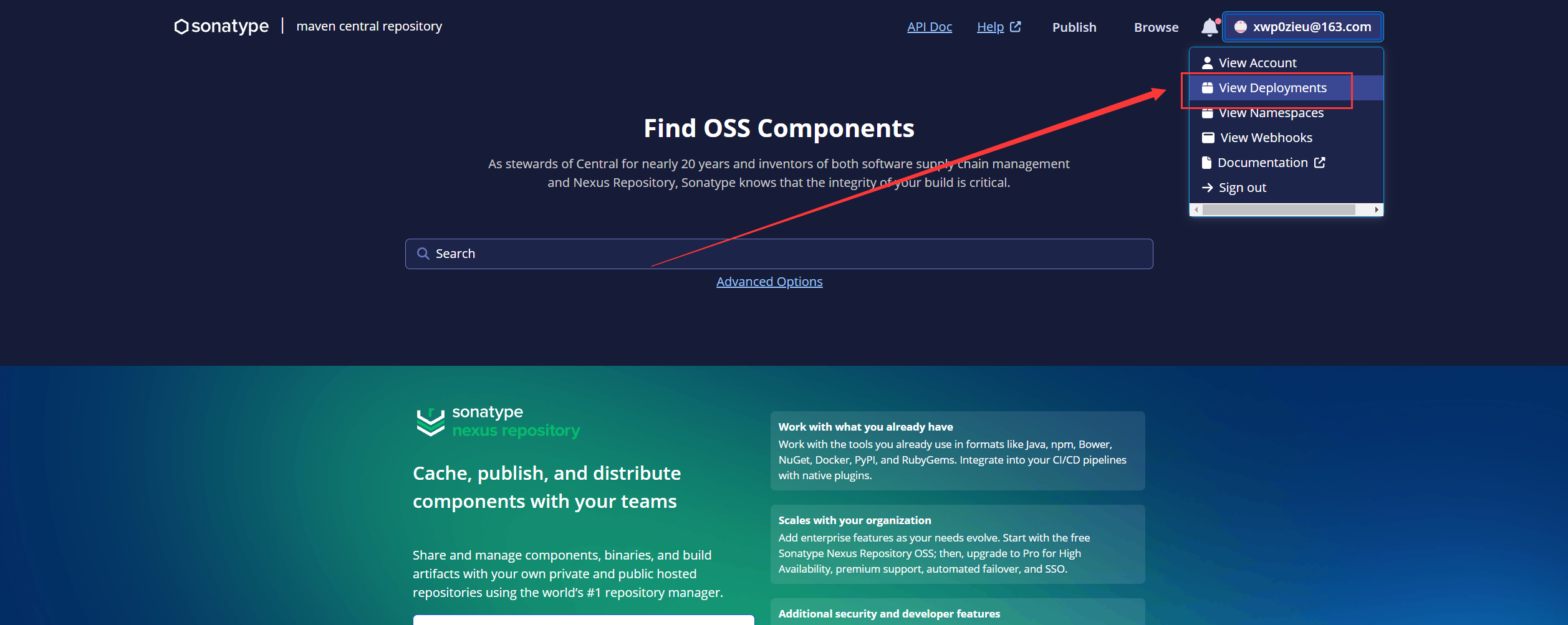
选中指定版本,点击
publish,进行发布。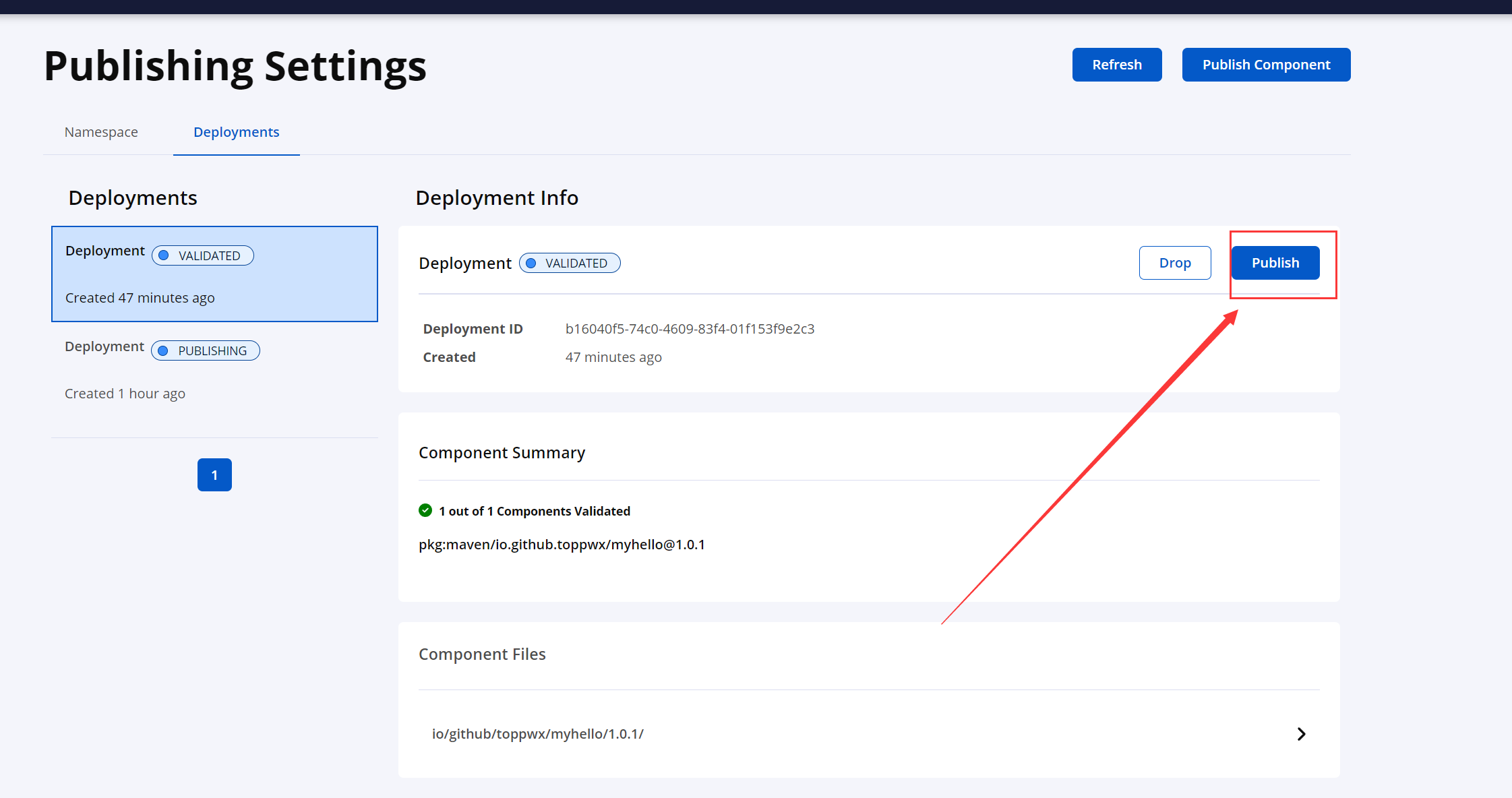
发布成功后,显示蓝色图标。
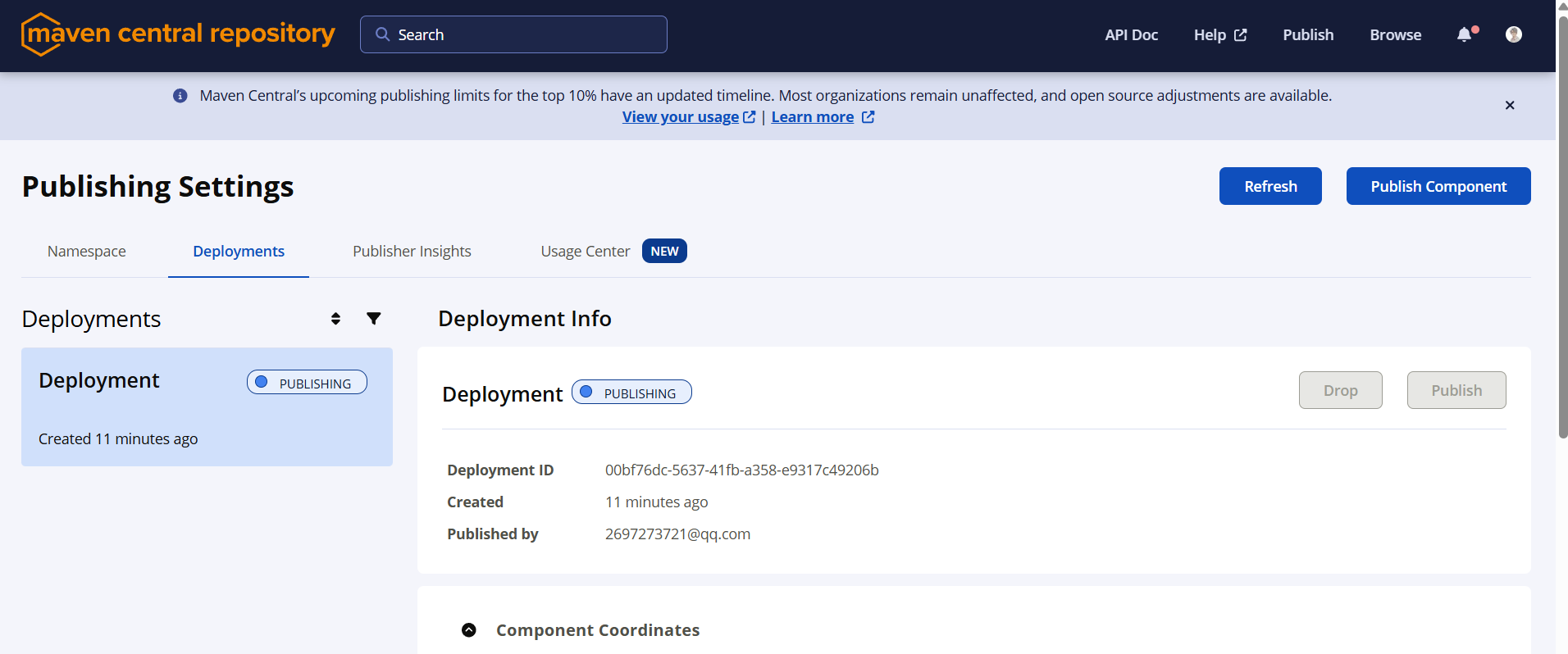
使用
通过dependency引入jar包。
    <dependency>
      <groupId>io.github.dreampathway</groupId>
      <artifactId>amoon-common</artifactId>
      <version>1.0.0</version>
    </dependency>
 湘公网安备43040002000293号